O'Neill Elementary's 3rd Grade Reading class, under the direction of Mrs. Julie Pistulka along with help from Katie Morrow, ESU 8, recently published their latest version of an annual community history research project. This year, the creative student authors compiled and shared their information in the form of an alphabet book.
Using a Pages template, each "letter" consists of 3 pages:
1) a stanza of poetry and photo gallery on the topic
2) written report from student research
3) student-created artwork
Students added audio narration for all the text with the newest feature of Pages books - Audio Recordings.
For 5th and 6th graders this was their first exposure to GarageBand. As we didn't have enough time for them to work through the Everyone Can Create Music book in its entirety, I gave a brief overview of how Live Loops worked and let them experience the power of music creation via discovery mode.
Then they randomly selected words from a "power words" vocabulary list I pre-made. Their task was to create a "Live Loops Lexicon" where the feel of the music helped bring to life the meaning of the word. After their 30-60 seconds of music was created and captured, they added a microphone track and voice recorded their word, its definition, and usage in an original sentence.
Alternately named "Lingo Jingles" this was a simple activity that introduced students to the power of creating music with GarageBand, while at the same time broadening their vocabulary!
Every year on September 8, International Literacy Day is celebrated. In conjunction with this year's celebration, AppleEDU has launched a #PagesBookChallenge. The challenge is simple. Create a digital book with your students in Apple's Pages app (free creation app for Mac or iPad). Then, simply tweet a short synopsis of the book along with its cover and tag #PagesBookChallenge.
To encourage all educators to participate here a series of short tips and recommendations for creating digital books with Pages.
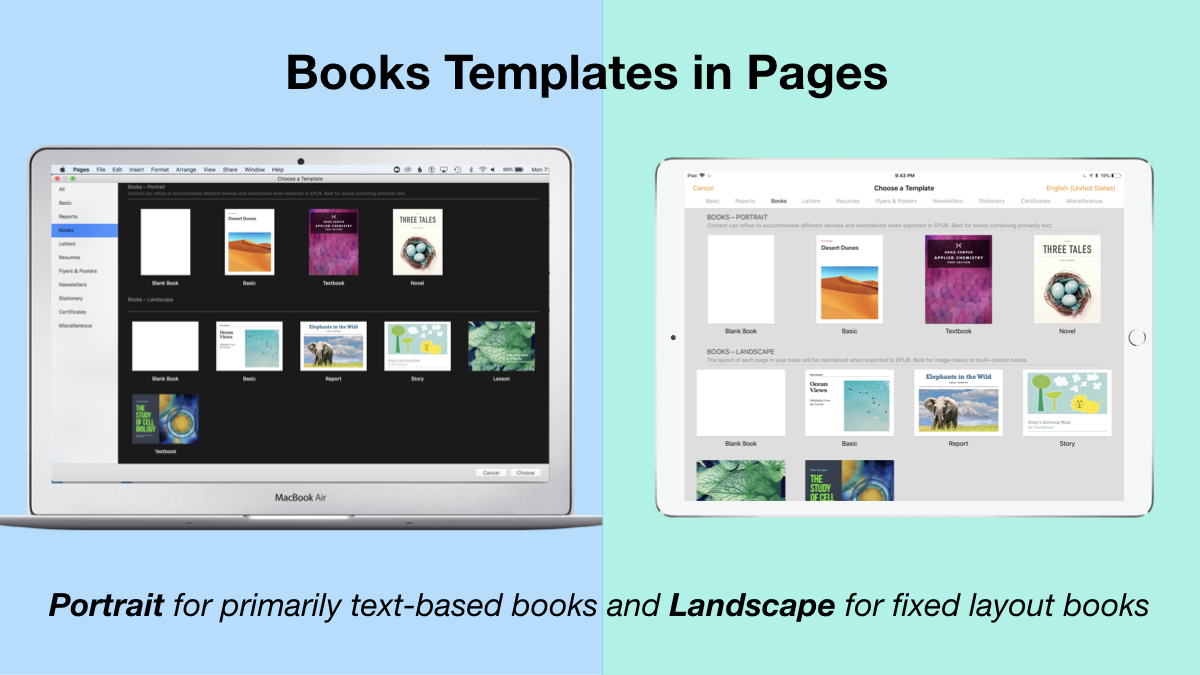
1. Begin a new Pages project using the Books templates.
Tip: Use Portrait templates for primarily text-based books (so that the reader can resize the text and the pages will adjust accordingly) and Landscape for fixed layout books (where you control the exact design and layout of the pages and the reader cannot adjust).
2. Author and Edit as you normally would in the Pages app.
The beauty of the iWork suite, in my opinion, is its simplicity and consistency across apps. Unleash your creativity!
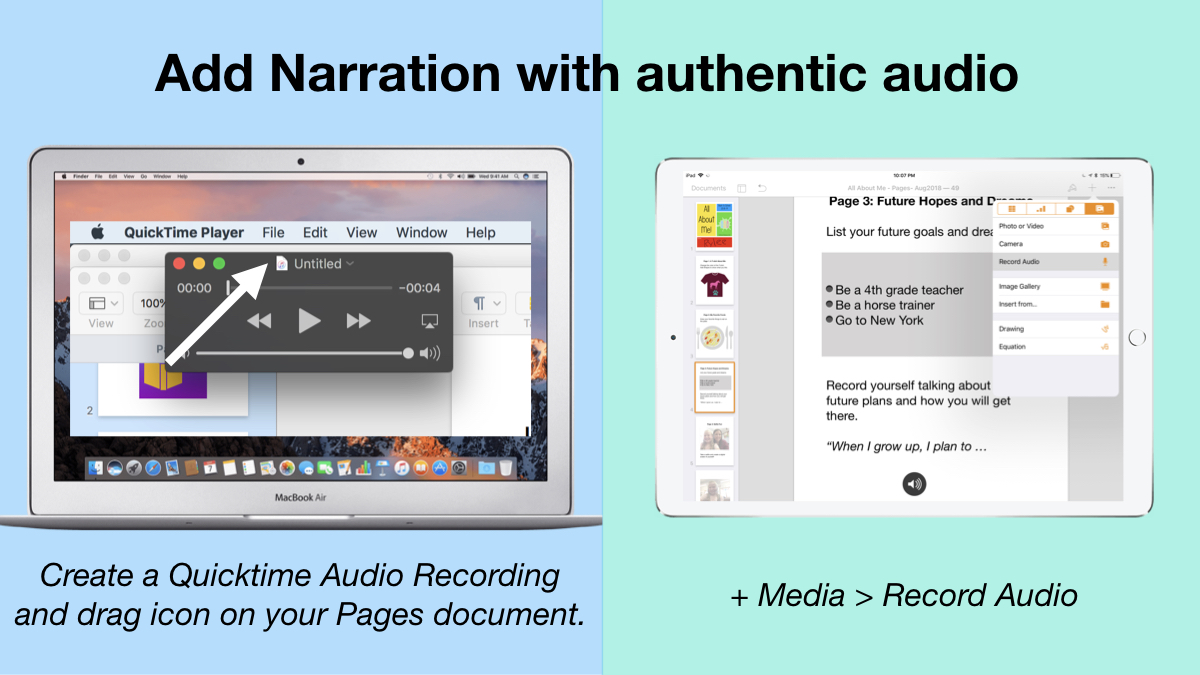
3. Add narration with authentic audio
On Mac: Create a Quicktime Audio Recording and drag icon next to filename onto your Pages document. On iPad: Tap the +, choose the Media tab, and Record Audio, then add to page.
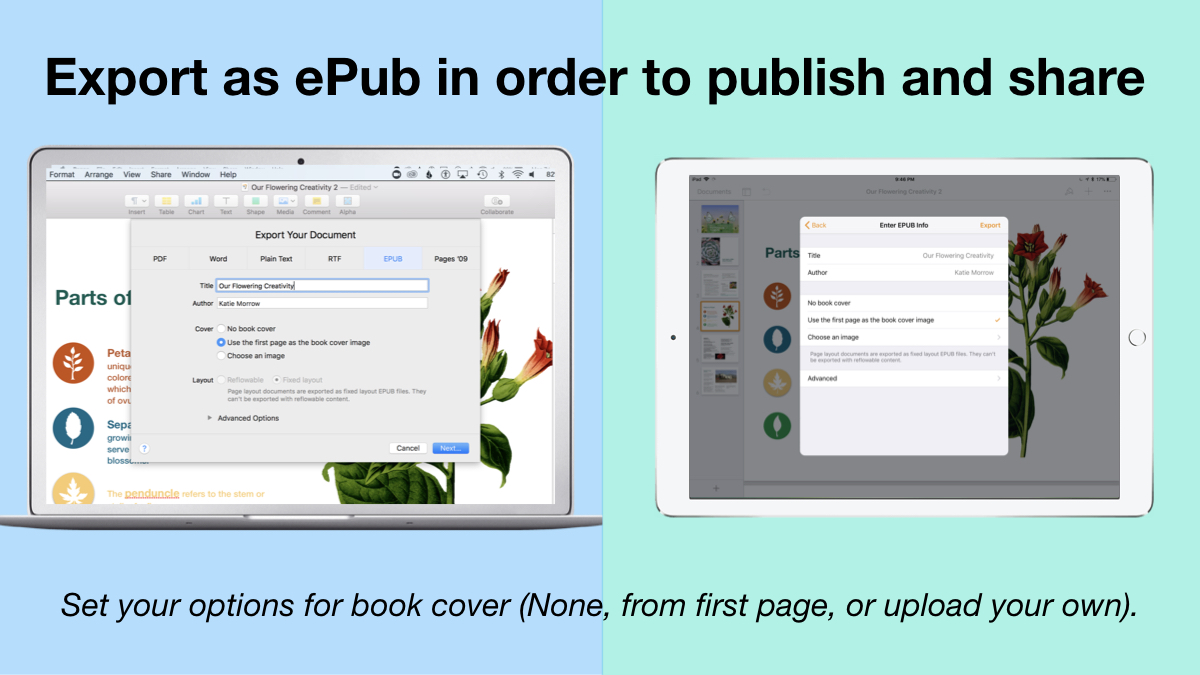
4. Export as ePub for Publishing and Sharing.
Title your book and name the author. Set your options for book cover: (None, from first page, or upload your own).
There you have it! Anyone can create a book with Pages.
Student books authored in Pages by Mrs. Troester's English 8 class, Spring 2018. (Science "Explainer" books for younger learners)
As educators the possibilities are endless when authoring books with Pages. To help learners experience authentic authoring, encourage them to work through all stages of the writing process. Here is a 60 second reminder of how to do so within the Apple ecosystem.
Finally, teachers can use Pages templates to help students focus more on the content of their books, and less on the the design of the pages. Whether for professional learning experiences, class books where every student authors a piece, or even shorter individual writing projects, simply create a Pages book as a starting template. Share the Pages document as a starting point and allow the learners to customize the content. Be sure to take advantage of the following features:
Media placeholders
Add image gallery placeholders from the Media button. This is a preset placeholder for the author to add an entire gallery of images.
Add text boxes and utilize Paragraph Styles
Text boxes are automatically ready as placeholders. Simply change the paragraph style and/or formatting.
Build your own photo/video placeholder
Add an image (or screenshot). Select the image and choose: On Mac: Format > Advanced > Define as Media Placeholder
Add pages as desired and distribute to all your budding authors.
I cannot WAIT to see what creative ideas you and your students have when creating books in Pages!
Shirley Rossman, 4th grade teacher at West Holt Elementary, just finished teaching her students about the four types of sentences. In order to reinforce these key concepts, she had the idea to adapt the concept of "Zoom Clues" videos made in Apple's Clips app and challenge her students to demonstrate mastery.
Here is the project workflow:
Students choose a "mystery object" and author FOUR sentences (one of each of the four sentence types: declarative, imperative, interrogative, and exclamatory) giving clues about the object's identity.
Students take a photo of their chosen mystery object with the iPad camera. The image should be fairly close up, but show the entire object, as this will be the view shared as the "answer" to the Zoom Clues video.
Students start a new project in Clips and add a poster image to introduce their video.
From the Library, bring the photo of the mystery object into the "stage." Pinch to zoom in as far as possible, and position the image in a way that guessing the object could be challenging. Add a label with the first clue and press the big red record button to add to the Clips project.
Zoom out just a little and/or change the viewpoint, add the second sentence clue with a new label, and record the clip.
Repeat for the last two sentence clues.
Add a conclusion slide that shows and reveals the answer.
Add music and export the final video to share it!
Here is a sample "4 Types of Sentences Zoom Clues" that the West Holt 4th graders and I quickly made together, but hopefully soon they will share some more clever examples of student creativity! Check back soon!
Last week, I was delighted to find this book delivered in my mailbox from Amazon.
"If I Were A Wizard" (hardback) by Paul Hamilton
At first glance, it looks like another delightful children's book, doesn't it? In actuality, "If I Were a Wizard" by Paul Hamilton teaches readers young and old all about computational thinking and coding concepts. And it does this without intimidating terminology (and yet provides connections at the end).
When I talked with Paul this July at the 2018 Apple Distinguished Educator Institute, I was amazed by his humility. It struck a chord with me when he mentioned that humans are drawn to story, but true connections are made via characters. Thus he created Hazel. And Hazel is more than a beautiful mouse on the pages of the book or the digital swipes in iBooks. Hazel is a relatable comrade for all those who get to know her. Students can "meet" Hazel and experience her world through Augmented Reality with the free app Wizard AR. While exploring this magical world, teachers like Katie Gardner can capitalize on creative writing opportunities. Or simply enjoy an original title track performed by a beautiful young vocal wizard. Teachers can build closer relationships with Hazel by visiting the wizardcodingbook.com website and downloading the numerous free educational resources-- writing, math, art, and even more beyond just coding. It is clear to see that Paul has created more than just a coding book!
It is hard to debate the value in teaching coding concepts in today's primary classrooms. With "If I Were a Wizard" young children of all ages and backgrounds will be inspired to consider today's reality-- that they, too, can code. And I will continue to be inspired by the author's dedication to education that matters.
In June during ISTE in Chicago, Challenge Based Learning celebrated its 10th anniversary with an event sponsored by Digital Promise and supported by Apple. The celebration was well attended, and stories were shared from the past decade of this important educational movement.
Photo credits for above photos: Dimitri Moore, Digital Promise Global
During the event, as stories were shared by Karen Cator, Katie Morrow, Marco Antonio Torres, Kayla Canario (Beardon Middle School), Mike Hoffman (Crane Elementary), and Mark Nichols, a new challenge was issued to all of us.
Big Idea: Community
Essential Question: How can we have a positive impact on our communities while learning?
Challenge: Create a positive and measurable change in your community!
How can we as ADEs and the greater education communities that we work with, continue the forward momentum? According to Marco Torres, we need to "CBL the crap out of everything you do. Be RELENTLESSLY curious, ask more “what if?” questions, and share broadly how you’re figuring things out."
Simple.
Photo credits for above photos: Dimitri Moore, Digital Promise Global
In July the WorldWide Apple Distinguished Educators Institute was held in Austin, TX. Challenge Based Learning played a pervasive role in ADE projects and collaborative creativity being put into action.
Midweek an impromptu "Expert Lab" was set up and ADEs were encouraged via Twitter to drop by and discuss CBL. Another great turnout ensued. Adam Brice led a sharing session and general discussion on infusing Challenges in our work as educators. Several ADE projects have already been publicly posted that incorporate CBL and aim to help it grow.
So, what's next?
How can we support each other on the CBL Journey? As always, there exists a growing collection of resources available on challengebasedlearning.org. Case in point, this recent CBL Challenge centered on 360° Media Production. But what is missing? What do you and your students need to launch the school year with a Challenge or use the CBL Framework to guide deeper, more impactful learning for your greater learning community?
Please join in the conversation.
What are you currently (or planning on) doing? What do you have to share from past CBL experiences? And what do you need to continue to take action and make a difference through Challenge Based Learning?
Let's continue the CBL momentum for another decade and beyond!