To bring to life first grade Social Studies learning, this class created an alphabet book based on the "Little House on the Prairie" series and Westward expansion topics.
First, Mrs. Willis and her students brainstormed topic options for each of the letters of the alphabet, then assigned to her class.
Next students researched and wrote their "stories," drawing an accompanying picture on paper.
I shared an ABC book template page via Apple Classroom and worked with the students to publish their work in Pages. Many examples of combining pencil and paper artwork with digital artwork were experimented with.
Students rotated through some "finishing stations" where they recorded audio with Mrs. Willis or were photographed in a pioneer costume.
Finally the pages were submitted to me via Apple Classroom so that I could assemble them in a class alphabet book.
Now published on the Apple Books Store, you can enjoy it here:
Our first task was to find a cover image, change the opacity, and use the drawing tools in Pages to create original artwork. When the tracing image was deleted, students were so proud of their digital artwork!
Of course, capturing "selfies" for their "Author the Author" page was pretty fun, too!
Next the students added content from their research on each of the pages, enhancing with copyright-friendly photos, shapes & drawing and even image galleries.
The final step was to record audio. Some students recorded a reading of their entire "report" while others recorded bits of text from multiple pages.
Students exported as ePubs and "handed in" their books via Apple Classroom, and Mrs. Krutz collected them all. To share with family and friends, I posted the epub files on a webpage and also made a screen recording video of each book, so that an audience without an iPad could still hear the students' voices.
All in one day's work in a second grade classroom!
Every year on September 8, International Literacy Day is celebrated. In conjunction with this year's celebration, AppleEDU has launched a #PagesBookChallenge. The challenge is simple. Create a digital book with your students in Apple's Pages app (free creation app for Mac or iPad). Then, simply tweet a short synopsis of the book along with its cover and tag #PagesBookChallenge.
To encourage all educators to participate here a series of short tips and recommendations for creating digital books with Pages.
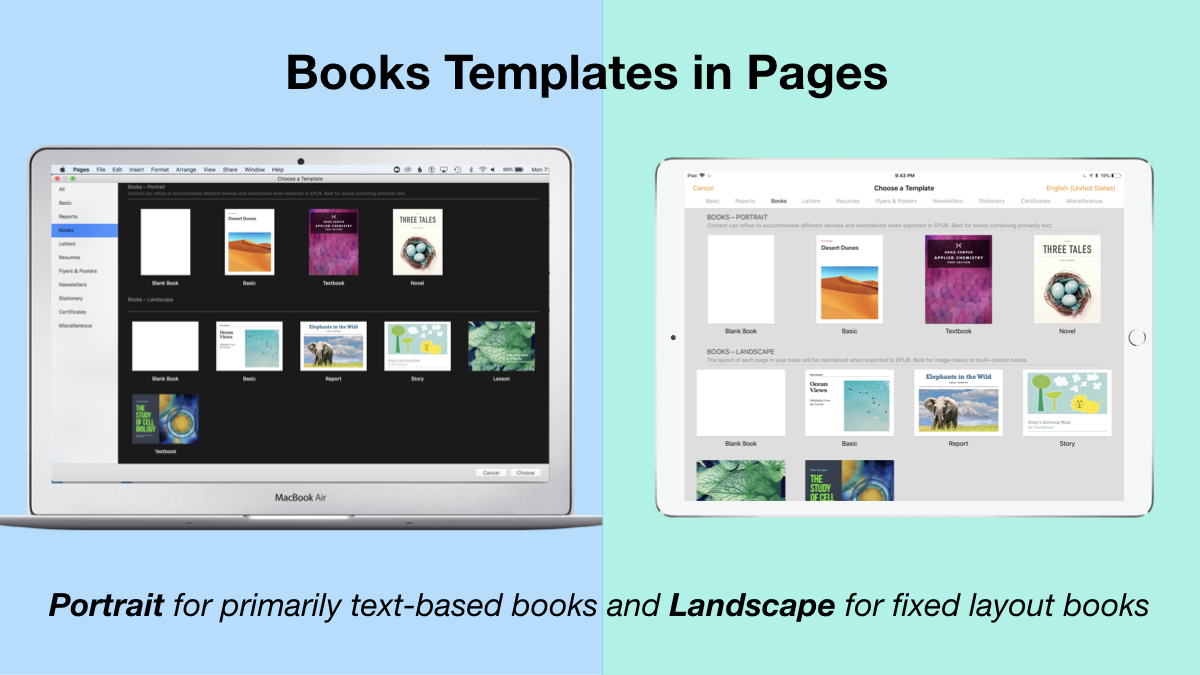
1. Begin a new Pages project using the Books templates.
Tip: Use Portrait templates for primarily text-based books (so that the reader can resize the text and the pages will adjust accordingly) and Landscape for fixed layout books (where you control the exact design and layout of the pages and the reader cannot adjust).
2. Author and Edit as you normally would in the Pages app.
The beauty of the iWork suite, in my opinion, is its simplicity and consistency across apps. Unleash your creativity!
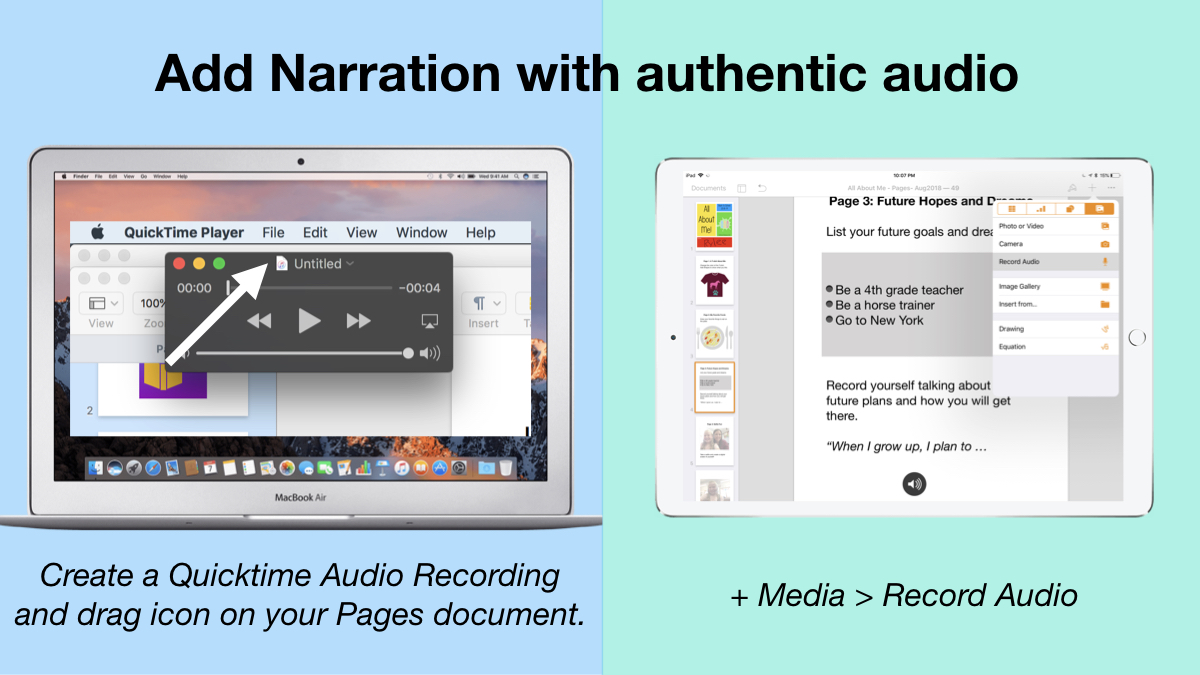
3. Add narration with authentic audio
On Mac: Create a Quicktime Audio Recording and drag icon next to filename onto your Pages document. On iPad: Tap the +, choose the Media tab, and Record Audio, then add to page.
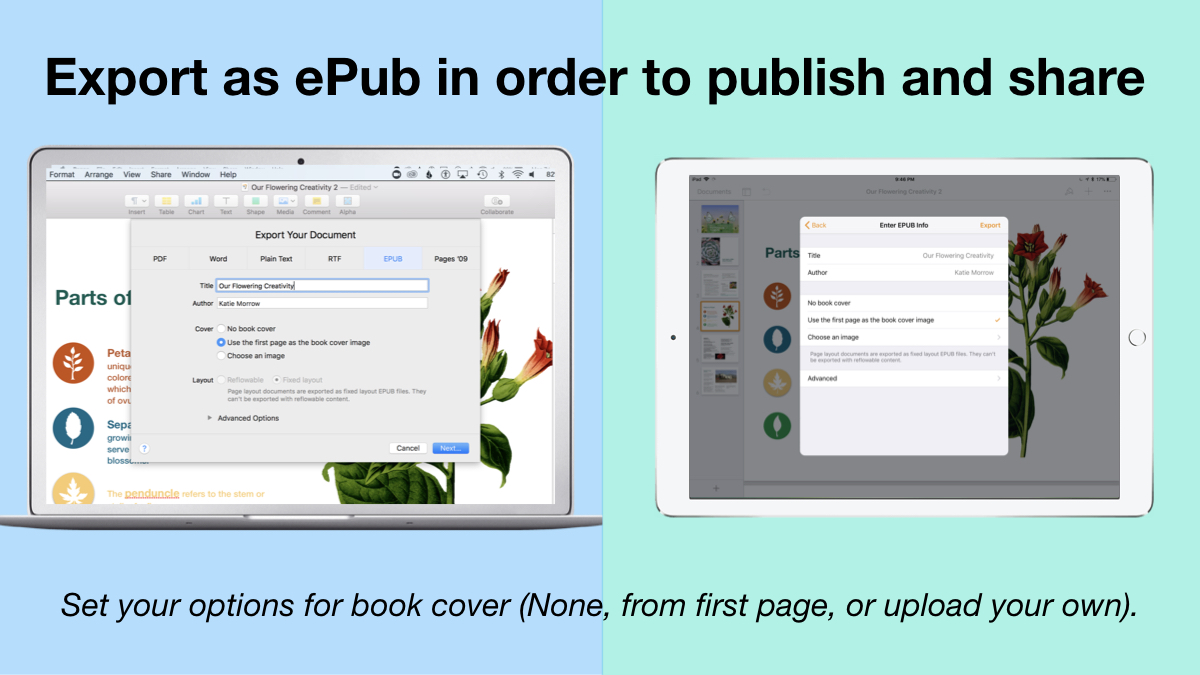
4. Export as ePub for Publishing and Sharing.
Title your book and name the author. Set your options for book cover: (None, from first page, or upload your own).
There you have it! Anyone can create a book with Pages.
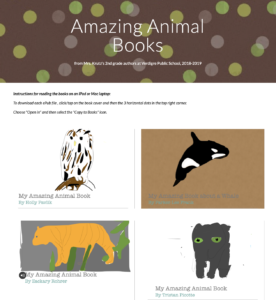
Student books authored in Pages by Mrs. Troester's English 8 class, Spring 2018. (Science "Explainer" books for younger learners)
As educators the possibilities are endless when authoring books with Pages. To help learners experience authentic authoring, encourage them to work through all stages of the writing process. Here is a 60 second reminder of how to do so within the Apple ecosystem.
Finally, teachers can use Pages templates to help students focus more on the content of their books, and less on the the design of the pages. Whether for professional learning experiences, class books where every student authors a piece, or even shorter individual writing projects, simply create a Pages book as a starting template. Share the Pages document as a starting point and allow the learners to customize the content. Be sure to take advantage of the following features:
Media placeholders
Add image gallery placeholders from the Media button. This is a preset placeholder for the author to add an entire gallery of images.
Add text boxes and utilize Paragraph Styles
Text boxes are automatically ready as placeholders. Simply change the paragraph style and/or formatting.
Build your own photo/video placeholder
Add an image (or screenshot). Select the image and choose: On Mac: Format > Advanced > Define as Media Placeholder
Add pages as desired and distribute to all your budding authors.
I cannot WAIT to see what creative ideas you and your students have when creating books in Pages!
The drawing tools available in Apple's creation apps are simple, yet powerful. Even a non-artistically inclined person can create digital graphics without even leaving the application they are in! Even more importantly, the act of creating infographics can lead to deeper understanding and longer-term learning for students.
Note: Whether demonstrating the drawing tools in Pages, Numbers, Keynote, or even iBooks Author, the process is the same. Use these ideas as starting points. What kinds of lessons do you teach that would lend themselves to students creating information-filled graphics?
First some teaching resources:
Creating Infographics is an excellent learning activity in content areas as well.
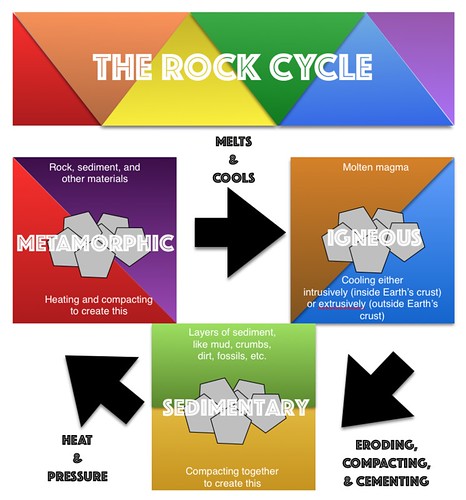
See a few student examples about the Rock Cycle from Kevin Morrow's 8th grade Science class here. Mr. Morrow commented on how visible the student creations made their understanding of the science content he had taught. In addition, he enjoyed the variety and creativity that the project allowed for.