Use this template for Lit Circles in Keynote with your students. Distribute the file and show students how to add pages from the template chooser for the various roles they will take on during Literature Circles each week.
Use a postcard template for students to practice writing in smaller chunks than a full-length written assignment.
The following templates can be downloaded and shared with students so that they can customize both the content and the design without the fear of "the blank page."
Use this activity as an exit ticket, an end-of-unit review, a mini book report, geography practice, or even grammar practice (use one of each of the 4 types of sentences in your postcard).
Early finishers can add a photo or drawing on the second slide and design the front of the postcard as well.
Every year on September 8, International Literacy Day is celebrated. In conjunction with this year's celebration, AppleEDU has launched a #PagesBookChallenge. The challenge is simple. Create a digital book with your students in Apple's Pages app (free creation app for Mac or iPad). Then, simply tweet a short synopsis of the book along with its cover and tag #PagesBookChallenge.
To encourage all educators to participate here a series of short tips and recommendations for creating digital books with Pages.
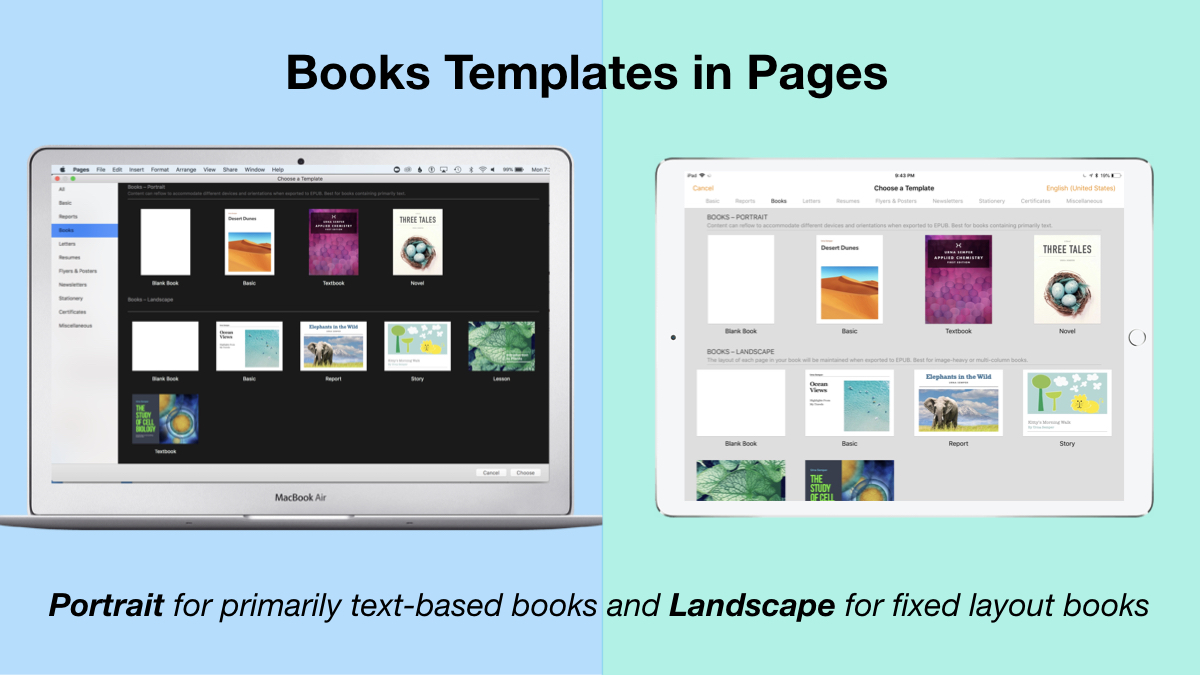
1. Begin a new Pages project using the Books templates.
Tip: Use Portrait templates for primarily text-based books (so that the reader can resize the text and the pages will adjust accordingly) and Landscape for fixed layout books (where you control the exact design and layout of the pages and the reader cannot adjust).
2. Author and Edit as you normally would in the Pages app.
The beauty of the iWork suite, in my opinion, is its simplicity and consistency across apps. Unleash your creativity!
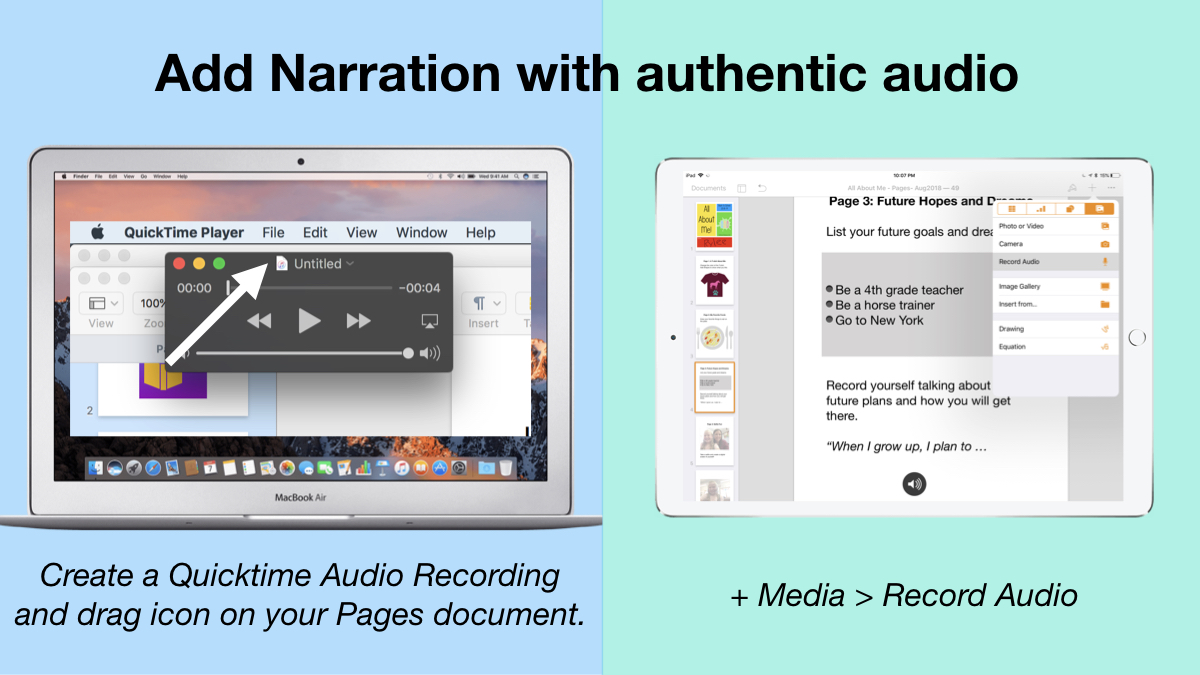
3. Add narration with authentic audio
On Mac: Create a Quicktime Audio Recording and drag icon next to filename onto your Pages document. On iPad: Tap the +, choose the Media tab, and Record Audio, then add to page.
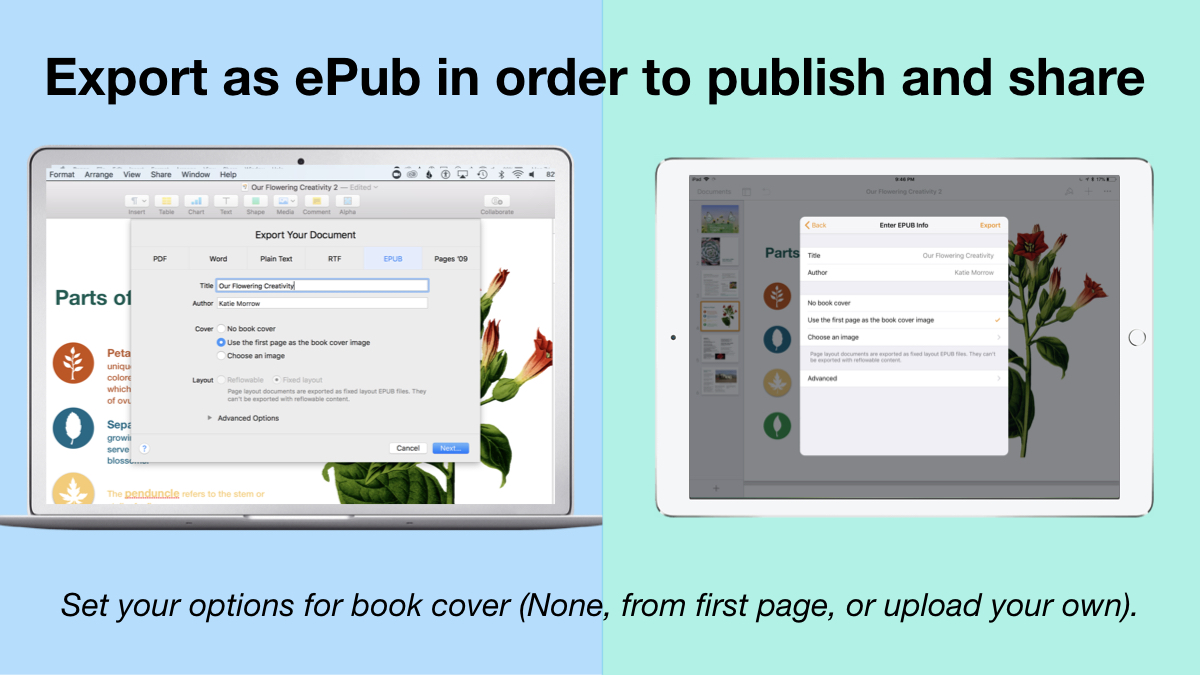
4. Export as ePub for Publishing and Sharing.
Title your book and name the author. Set your options for book cover: (None, from first page, or upload your own).
There you have it! Anyone can create a book with Pages.
Student books authored in Pages by Mrs. Troester's English 8 class, Spring 2018. (Science "Explainer" books for younger learners)
As educators the possibilities are endless when authoring books with Pages. To help learners experience authentic authoring, encourage them to work through all stages of the writing process. Here is a 60 second reminder of how to do so within the Apple ecosystem.
Finally, teachers can use Pages templates to help students focus more on the content of their books, and less on the the design of the pages. Whether for professional learning experiences, class books where every student authors a piece, or even shorter individual writing projects, simply create a Pages book as a starting template. Share the Pages document as a starting point and allow the learners to customize the content. Be sure to take advantage of the following features:
Media placeholders
Add image gallery placeholders from the Media button. This is a preset placeholder for the author to add an entire gallery of images.
Add text boxes and utilize Paragraph Styles
Text boxes are automatically ready as placeholders. Simply change the paragraph style and/or formatting.
Build your own photo/video placeholder
Add an image (or screenshot). Select the image and choose: On Mac: Format > Advanced > Define as Media Placeholder
Add pages as desired and distribute to all your budding authors.
I cannot WAIT to see what creative ideas you and your students have when creating books in Pages!
Every once in awhile you find that tech integration idea that withstands the test of time. Even as the tech tools evolve and change, the learning still holds its value. "Six Shot Stories" is one of those practices for me. As an English teacher, the value of writing Six Word Memoirs created numerous educational benefits with my students. Theme, concise word choice, summarization are all skills emphasized with this simple activity. Pairing the concept with media was brilliant, and Don Goble's One Best Thing book: "Six-Word Story, Six Unique Shots" remains an invaluable resource for delivering the lesson to students.
Recently I worked with the 4th grade classes at West Holt Elementary to share their school's stories through this technique. And Apple's Clips app on iPad was the perfect medium to create some powerful digital stories in a short timeframe.
I began the lesson by viewing Apple's latest commercial for iPad "Homework" and asking students to count the number of cuts, in order to establish the importance of storytelling through a wide variety of camera angles and shots.
Then students paired up to author a Six-Word Story about their school, their classroom, or their daily activities as 4th graders at West Holt Elementary. It is amazing to see such powerful stories created in just six words by students!
I used Don Goble's book on iBooks to demonstrate different shots that were possible, and reminded students of some simple best practices when capturing with iPad. Instructions were emphasized that each shot should be between 3 and 5 seconds and no technique should be repeated (each shot is unique). Students used a storyboard to plan their six shots and then used the camera app to capture each on their iPad.
Finally, with only literally a few minutes of instruction on the Clips app, students assembled and edited their story. Some added all six words of text at the very end, some used one word per shot, and others split up the text in varying ways. Many were able to experiment with the other creative features of Clips as well, even within the one-class time period we had together. Each team of students exported their product to camera roll, then Airdropped to their teacher's Mac in order to upload on a YouTube channel and organize in a playlist.
What I appreciate most about this project as an ELA teacher, is the tremendous focus on concise, clear communication it entails. As a technology teacher I value the creativity and composition techniques that allow student media production to instantly be raised to the next level.
Our process included brainstorming ideas and writing the stories on paper with Mrs. Willis. When Mrs. Morrow worked with us on the iPads we created the setting and characters for our stories and recorded the animations with the Toontastic 3D app. Then each student created their own Book Creator project and designed their pages by adding the typed text of their story, their Toontastic animation, additional illustrations, and of course, their signature. Each student’s individual Book Creator pages were Airdropped to Mrs. Morrow’s iPad to be combined into one class book. Students brainstormed the facts for the ‘Did You Know?’ pages in between each of the leprechaun’s adventures. Finally, we filmed the conclusion for the book all together and added it to the last page of our Book Creator project.
So, how can you experience this creative story?
Luckily, you have three options.
1. If you have an iPad or a Mac, download the free iBooks app.
2. If you do not have an iPad, but have another type of digital device, you can “read” the whole story as a video on YouTube.
The video of the whole book is over 18 minutes long, but you can easily skip around to find your favorite parts.
*TIP: Be sure to watch the ending of the story, no matter what! It starts around 17:44
3. A final option would be to stop in the 1st Grade classroom and read the book there. We will have a printed version on paper (minus the student voices and videos) as well as being able to view on the school iPads.
Happy St. Patrick’s Day from some amazingly creative iPad authors!
The following are some simple ideas for teaching poetry writing lessons with iPad apps. All apps are free, unless otherwise noted.
Rhyming Poetry
Try the Rhymer's Block app to create a new piece of rhyming poetry. Use the Prime Rhyme app or the RhymeZone website as a reference to find rhyming possibilities.
Another great introduction to poetic forms is creating a name poem. Here is one online generator to quickly prompt this kind of poetry. Also consider trying this Name Poem app.
Found Poems
"Found Poems" are formed by finding words within prose and reassembling them in order to form a new poem. Students can use an app such as FridgePoems to practice reassembling random or suggested words. Then take a piece of prose (a famous speech or passage from an essay, for example) and create a found poem with the Word Mover app.
Point-of-View, Personification, or Persona Poems
Chatterpix app- Students write a poem in first-person point of view. They then take a photo of the “narrator” (it could be an inanimate object or a historical person or a photo of anything they find online). In the Chatterpix app they draw on where the “mouth” is and then record themselves reading their poem, making the photo come to life and look like it is speaking. Alternatively, they could use an app such as PhotoSpeak if their poem lasts longer than 30 seconds.
Oral Fluency Poetry Reading
GarageBand app- Students record an oral version of any poem they author, reading with expression of course! Export the audio recordings with Share > Export Song to Disk and then collect all students’ poems in a playlist, Google Drive folder, or put on a website for others to listen to.
Illustrating Poetry
Use a drawing app like Doodlebuddy or Paper by 53 and have students create a Sketchnote of their poem. Alternately, even simply illustrating an image to go along with their poem would have value.
Syllable Structure Poems
Use this teacher-created guide for iBooks to expose students to some poetry formats with set syllable structures (including haiku, senryu, tanka, and cinquain) and then use an app like Haiku Poem to create their own.
Concrete Poetry
Students create a concrete poem built out of the shape of their words. A favorite app for this type of poetry creation is TypeDrawing, however it is a paid app. Another option (also not free) is the app Path On.
Diamante Poems
Use the Diamante Poem app from ReadWriteThink to create this diamond-shaped, set structure poem.
Poetic Symbols
Use the Adobe Voice app and bring poetry to life with the images in the app's symbol library. Add your poem with a voice over and you easily have a finished multimedia project. Note: the student example below is not necessarily a poem, but gives you an idea of how simple to use the app is.
Poetry Video Remix
Create an iMovie from a published poetic work. The following example created by students is a interpretive remix of the poem "Nothing Gold Can Stay."
Figurative Language
Find examples of figurative language in modern day song (like the example below, created by students with the Keynote app), in books, or other existing works. Students can create a compilation of figurative language examples or simply author their own.
Additional iPad apps for exploring poetry with students:





 Are you as excited for St. Patrick’s Day as the creative First Grade Authors in Mrs. Willis’s class are?


