Wednesday, August 14, 2019

The Wormhole Challenge

Inspired by creative educators sharing their #WormholeChallenge creations on Twitter, ESU 8 educators got out a little green play doh and tried their own hand at magically revealing something via iMovie green screen capabilities.


While the green/blue screen feature is fairly new to iMovie on iPad, it has been a part of iMovie on Mac for some time. However, it is the approach to this simple green screen project that seems new.  Often we film in front of a stationary green background for effect. But in the Wormhole Challenge, you manipulate the green screen to reveal a pieces of a background a little at a time.

There are so many adaptations for this simple idea, but we used it as a simple ice breaker activity while working with groups of teachers in back-to-school PD. Here are the steps we used to accomplish the goal:

1) Use the built-in camera to record a video of your partner manipulating the green or blue play doh. Change sizes, placement, and even position further and closer to the iPad camera.

2) Open a new blank iMovie video project.

3) FIRST, add your background image (or video). In other words, what you plan to reveal.

4) SECOND, add your video of the hands manipulating the green blob.

  • if using iPad: 
With your playhead at the beginning of your project, use the + to add the Video from your 'Recently Added' album. Once selected, use the ellipsis to select "Green/Blue Screen" from the options. Finally, don't forget to tap on the part of the video in the viewer that you want iMovie to "key" out (green, blue, or some other color you want to become invisible!).


  • if using Mac:
Drag your green screen video clip just ABOVE your background clip in your timeline. Then, click the Video Overlay settings button and change the dropdown menu from 'Cutaway' to 'Green/Blue Screen'. That's it! iMovie will automatically find the green or blue color here. (You can, however, do some adjusting and editing if need be.)


Amazingly, that is all there is to it! No need for additional software, apps, or extensive editing experience. Now, what will you magically reveal in your next Wormhole Challenge project?


Wednesday, May 8, 2019

Pioneer ABCs: Book creation by 1st graders


To bring to life first grade Social Studies learning, this class created an alphabet book based on the "Little House on the Prairie" series and Westward expansion topics. 

First, Mrs. Willis and her students brainstormed topic options for each of the letters of the alphabet, then assigned to her class. 

Next students researched and wrote their "stories," drawing an accompanying picture on paper.

I shared an ABC book template page via Apple Classroom and worked with the students to publish their work in Pages. Many examples of combining pencil and paper artwork with digital artwork were experimented with. 


Students rotated through some "finishing stations" where they recorded audio with Mrs. Willis or were photographed in a pioneer costume.
 

Finally the pages were submitted to me via Apple Classroom so that I could assemble them in a class alphabet book. 


Now published on the Apple Books Store, you can enjoy it here:

For members of our audience without access to Apple Books, we shared the following additional versions:

Wednesday, March 27, 2019

Six Shot Stories in Science

West Holt 4th graders are at it again! Turning their writing skills into six-shot stories with Clips. This year they took on the added charge of creating their stories about relevant science topics from a list Mrs. Shirley Rossman gave them.

They used a storyboard/planning document to help them plan their video stories, making sure they used six unique camera shots when filming.


Finally, they brought their Six Word Stories to life using Clips on the iPad.


Here are the final products:
Six Shot Science Stories playlist


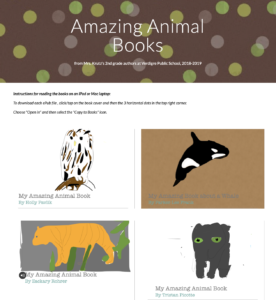
AMAZING Animals books written by AMAZING Authors

For this 2nd grade class, this was the very first time they had ever used Pages... let alone create a digital book. 

They were excited about becoming authors! (mostly!)

I shared a simple template with them via Apple Classroom so that had a starting point for their Amazing Animal book. 
Download and open in Pages
Our first task was to find a cover image, change the opacity, and use the drawing tools in Pages to create original artwork. When the tracing image was deleted, students were so proud of their digital artwork! 


Of course, capturing "selfies" for their "Author the Author" page was pretty fun, too!
 

Next the students added content from their research on each of the pages, enhancing with copyright-friendly photos, shapes & drawing and even image galleries.  
   

The final step was to record audio. Some students recorded a reading of their entire "report" while others recorded bits of text from multiple pages. 


Students exported as ePubs and "handed in" their books via Apple Classroom, and Mrs. Krutz collected them all. To share with family and friends, I posted the epub files on a webpage and also made a screen recording video of each book, so that an audience without an iPad could still hear the students' voices. 

All in one day's work in a second grade classroom!
Amazing Animal Books by Verdigre 2nd grade


Thursday, January 17, 2019

Drawing on iPad + Line Draw Animation = Digital Citizenship PSAs

Students from O'Neill High School's Digital Citizenship team created public service announcements to share key take aways learned from the 2018 Digital Citizenship Symposium.


To create, students used this workflow:
1) Choose a topic and write a script (and timed it aloud, ensuring it was 30-60 seconds in length).
2) Decide on visuals and draw on blank Keynote slide with Apple Pencil.
3) Animate the drawing with Keynote's 'Line Draw' animation and export as a movie file.
4) Drop the movie file in a new, blank iMovie project.
5) Voice-over the script and adjust the timing of your line draw animation movie to match.
6) Add background music from GarageBand media library and export the final product!


After creating the PSAs, students shared them during Digital Citizenship Week online (via Twitter), on local radio (KBRX - O'Neill), through Mr. Fisher's "Monday Memo" (all-school weekly update) and on O'Neill High School's Eagle Eye Broadcasting- Daily Announcements show where the students also talked about their important messages.

Third Grade Authors publish book about their community's history

The ABCs of Our Community, O'Neill on Apple Books Store
O'Neill Elementary's 3rd Grade Reading class, under the direction of Mrs. Julie Pistulka along with help from Katie Morrow, ESU 8, recently published their latest version of an annual community history research project. This year, the creative student authors compiled and shared their information in the form of an alphabet book.

Using a Pages template, each "letter" consists of 3 pages:
1) a stanza of poetry and photo gallery on the topic
2) written report from student research
3) student-created artwork

Students added audio narration for all the text with the newest feature of Pages books - Audio Recordings.

Learn more about the community of O'Neill, Nebraska as well as student creation of digital books with Pages on iPad by downloading the book from the Apple Books Store.


Wednesday, November 21, 2018

Live Loops Lexicon: A vocabulary lesson with GarageBand


For 5th and 6th graders this was their first exposure to GarageBand. As we didn't have enough time for them to work through the Everyone Can Create Music book in its entirety, I gave a brief overview of how Live Loops worked and let them experience the power of music creation via discovery mode. 

Then they randomly selected words from a "power words" vocabulary list I pre-made. Their task was to create a "Live Loops Lexicon" where the feel of the music helped bring to life the meaning of the word. After their 30-60 seconds of music was created and captured, they added a microphone track and voice recorded their word, its definition, and usage in an original sentence. 

Alternately named "Lingo Jingles" this was a simple activity that introduced students to the power of creating music with GarageBand, while at the same time broadening their vocabulary!


Student Examples: