Showing posts with label creativity. Show all posts

Monday, April 20, 2020

Awesome Augmented Reality with EyeJack


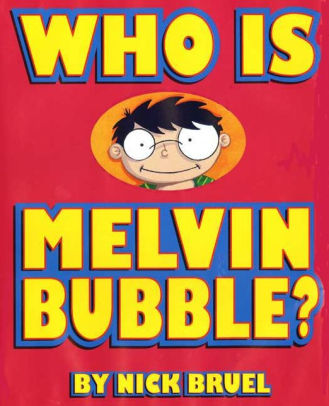
Shirley Rossman, 4th Grade Teacher at West Holt Elementary, leads her students in a creative autobiographical writing project each year. Based on the book "Who is Melvin Bubble?" by Nick Bruel, students engage in perspective writing, as each page describes themself through the eyes of a friend or family member. The final page is all about the student from the point of view of the student themself, and this is where we collaborated for an augmented reality twist to this project. 

  • Students wrote their drafts on paper and collected digital images of the family members and friends who were "telling the story."
  • I created a template file in Keynote that students could personalize with their content and eventually export as pdf for self-publishing/printing. 
  • Using the camera on an iPad, students took pictures of each of their handwritten final draft pages and added them to the appropriate placeholders in the Keynote template.
  • Each photo of the "narrator" of the page was opened in the Clips app, a cartoon filter was added, saved to camera roll, and then Airdropped to the students to add to their book file. 
  • We took photos of the students themself (one close up of their face for the cover and a full-body waving shot for the first and last pages) and used the Clips app to "cartoonize" and Airdrop as well. 
  • Using the free voice memos app each student recorded an audio narration of their final page of text (explaining who they are from their own point of view). 


Using Keynote again, students created an animation for their final page. The trigger image was their waving photo. It was added to a slide and then that slide was duplicated. Slide 1 will become your trigger image (export as png with transparent background) and Slide 2 is where you lock the image to the background and then create your animation around it. Then shapes, drawings, images, etc. were added, formatted, and then animated with motion paths and effects. Timings could be set to automatic, but students were encouraged to aim for about 30 seconds of total animation length (to match the maximum audio recording duration). When complete, the background image was unlocked and deleted, the slide background was set to transparent, and the 2nd slide was exported as a gif. 

I used the EyeJack Creator app (free download for Mac) to assemble each student's augmented reality experience for their final page. 
  1. Add trigger image (exported png from 1st Keynote slide)
  2. Upload animated gif (exported from 2nd Keynote slide)
  3. Add audio (mp3 from Voice Memos)
The EyeJack Creator app generates a QR code which is also saved and placed on the page in each students' Keynote "book."

Now, when people read their book, they use the free EyeJack app on their phone to scan that QR code and then hover over the trigger image on the page to see the animated come to life in AR. 

Each student's finished Keynote book was exported as a pdf. 
I used the softcover Tradebook option (Economy, color) on blurb.com to order a printed copy for each student and their family. (Approximately $5 each when all was said and done.)


In addition, for fun, I made a version for Mrs. Rossman and myself that had just the final page from every student's book into a class compilation of Augmented Reality student "About Me" animations. 


Tuesday, January 7, 2020

An Elf's Key(note) to Toy Making


Considering applying to be hired as one of Santa’s elves? Complete a written application and demonstrate your toy making abilities with Keynote!

Learn some Keynote skills along the way. All it takes is your imagination and you can prove to Santa that he should hire you as his next lead Elf!

Download the Keynote file here


Enjoy some elves-in-training from Mrs. Sladek's Writing classes here:


And a sneak peek into the toy-making process of these elves:


Tuesday, October 29, 2019

Topics and Trends in Tech Integration (ESU 8 Newsletter article)

Topics and Trends in Tech Integration
By Katie Morrow, ESU 8


The following are current technology integration projects and practices that ESU 8 schools have been busy with recently. Remember that the invitation is always open if you see something from this list that you would like to try in your classroom. Contact us at ESU 8 and we would love to help get something planned in your school!
  • Digital book creation: A digital book is so much more than a book. Rather it is a container/organizer for all kinds of learning! Use a digital book as an investigation journal, a portfolio, a class collection of pages on a larger topic, or even a way to document a school event. Publish and share with the world without wasting any printer ink!
  • Creative media production: Whether a quick project like the greenscreen “Wormhole Challenge” or a class project like content area student-produced videos, students can practice interview skills, speaking skills, editing and creativity. Videos are a universal way to share what is being learned in the classroom with the rest of the world!
  • VR and AR: Virtual and augmented reality can bring content to life. Students can experience apps to take them places they couldn’t normally go: for example the inside of body systems or underneath the ocean floor. Also possible is students creating their own VR and AR creations with tools such as Google's Tour Creator, AR Makr app, or Blippar.
  • Digital resources for research: Utilize World Book online, Learn 360, or Virtual Field Trips to connect your class with first rate global resources- all with virtually no cost. Avoid simply going on a Google search and use higher quality resources for whatever your next educational project may be.
  • Blended Learning and PBL: Here’s a framework or a learning methodology to make your next project more student directed. Student agency empowers learners to be responsible for choices impacting their productivity and understanding of content. Make your next unit more personalized by blending in some project based learning or station rotation experiences.  
  • Gamify with assessment tools: Use technology for your next classroom review session and make learning fun! There are so many readily available formative assessment tools that you can choose a new one each unit so students don’t grow tired of any of them. Even some traditional tools have new features, so ask about ways to gamify that next class review session. 
  • Learning Management System tools like Canvas or Google Classroom: The easiest way to take technology integration to the next level in your classroom is to employ a system of content delivery and student interaction. Even Apple Classroom has updates to make their newest technology more manageable for all. Work with us to uncover ways your LMS can allow for more productive learning environments. 
  • Coding: Expose students to computational thinking by integrating some analog "intro to coding” activities. Or give them time to explore Swift Playgrounds on iPad or the code.org website. Or bring the Sphero programmable robots to your school for a coding kick-off activity. Once you get kids hooked, the sky is the limit for their future!

For additional ideas and examples from ESU 8 schools recently, be sure to check out my Instructional Tech at ESU 8 blog at: https://esu8tech.blogspot.com  

Be creative to help get "back in the groove!"


Back to School time around ESU 8 was filled with new facilities, new personnel, and new expectations for an amazing school year. Many of the activities incorporated a hands-on activity powered by educator creativity.

The following are some of the examples. Can you think of how each activity could be modified for use in your classroom?

Creative Portraits


Expedition Map


Expedition Team Flags


Expedition Team gifs


Wormhole Challenge


Spooky Science


Mrs. Shirley Rossman and several of her 4th grade students created a Halloween-themed story to share their learning about physical and chemical changes in Science.

The team brought their ideas to life with a green screen, iMovie, and extra touches with Keynote.


The video was shared at West Holt Elementary's October assembly during Jr. Husky Highlights so all could share in the learning!

Congrats, ladies, on a creative, "creepy" project!


Monster Character Maker

Mrs. Jenny Alder's 4th grade students at Stuart Elementary were kind enough to help me create some monster characters!

Using the brilliant activity from Laura Wright's WrightStuff Interactive, airdropped via Apple Classroom, students got right to work creating unique monster characters in Keynote. 


What resulted was a diverse conglomeration of mostly-friendly monsters, complete with name and the artist's autograph. 


Now the 4th graders will employ their creative writing skills to bring their monster characters to life in writing!


Sunday, October 6, 2019

Animal Adaptations Infographics

For this year's ESU 8 Elementary Science Olympiad, activities were centered around a phenomenon. Students were scientists as they explored and experienced topics with connections to that phenomenon.

During my rotation we learned about animal adaptations and how they help animals survive. Each pair of students created an infographic in Keynote on iPad to visually share their scientific knowledge with others.

To replicate in your classroom, I recommend starting with the Everyone Can Create: Drawing guide book from Apple Books. Chapter 9 is all about infographics and contains solid examples as well as planning considerations.
Everyone Can Create Drawing
We also examined this Snowy Owl infographic example to look for critical features of an infographic as referenced in the Everyone Can Create chapter.

Next student pairs each chose an animal that interested them and researched it on World Book Online Student Edition. ESU 8 provides access to this valuable resource to all our schools and it tremendously helped with efficient and responsible research for this age group of students. Older learners could use Advanced and younger grades the Kids Edition of World Book Online. We discussed how to cite and credit the article for their researched and then navigated to the media tab to choose the image to be the center piece of their infographic. Students copied their animal's image and then opened the Keynote app to begin to create.

Prior to students arriving, I used Apple Classroom to distribute a Keynote file where I had created a custom theme with different biome backgrounds set to 50% opacity and locked in the background of the slide design options. This was mostly to maximize time for students to create.

(To make your own version simply create a new Keynote, View > Edit Master Slides, delete the existing masters other than the blank one, duplicate that and add a different background image to each, name each slide master and choose 'Done'.)

Now, all students needed to do was add a new slide (blue + on bottom left) and choose the biome that most closely matched their chosen animal. They pasted their image on the slide, resized and some used instant alpha to clean up the background. (Note: If students had access to Apple Pencil, I would encourage them to trace, color, and delete the original image in order to have a truly personalized look for the visual focus of their infographic.)


Using my example of a deer and its adaptations that I created below, we continued to go back and forth (or use Split Screen view on the iPad) between World Book Web and Keynote in order to add the following components:

  • Title
  • Name of biome
  • Map of where it lives
  • at least 3 adaptations that help it survive


Keynote skills the students learned included:
  • Adding and editing text
  • Inserting drawings
  • Using shapes, callouts, and connectors
  • Recording audio (for a few early finishers)
Also during this fast-paced 45 minute lesson we discussed critical design elements including, font, color, layout (proximity & space), and contrast. 


After all the student groups had rotated through, it was easy to collect the Keynote files through Apple Classroom and send the completed infographics back to their teachers. You can view the students' creativity and scientific knowledge in this online gallery.

Wednesday, August 14, 2019

The Wormhole Challenge

Inspired by creative educators sharing their #WormholeChallenge creations on Twitter, ESU 8 educators got out a little green play doh and tried their own hand at magically revealing something via iMovie green screen capabilities.


While the green/blue screen feature is fairly new to iMovie on iPad, it has been a part of iMovie on Mac for some time. However, it is the approach to this simple green screen project that seems new.  Often we film in front of a stationary green background for effect. But in the Wormhole Challenge, you manipulate the green screen to reveal a pieces of a background a little at a time.

There are so many adaptations for this simple idea, but we used it as a simple ice breaker activity while working with groups of teachers in back-to-school PD. Here are the steps we used to accomplish the goal:

1) Use the built-in camera to record a video of your partner manipulating the green or blue play doh. Change sizes, placement, and even position further and closer to the iPad camera.

2) Open a new blank iMovie video project.

3) FIRST, add your background image (or video). In other words, what you plan to reveal.

4) SECOND, add your video of the hands manipulating the green blob.

  • if using iPad: 
With your playhead at the beginning of your project, use the + to add the Video from your 'Recently Added' album. Once selected, use the ellipsis to select "Green/Blue Screen" from the options. Finally, don't forget to tap on the part of the video in the viewer that you want iMovie to "key" out (green, blue, or some other color you want to become invisible!).


  • if using Mac:
Drag your green screen video clip just ABOVE your background clip in your timeline. Then, click the Video Overlay settings button and change the dropdown menu from 'Cutaway' to 'Green/Blue Screen'. That's it! iMovie will automatically find the green or blue color here. (You can, however, do some adjusting and editing if need be.)


Amazingly, that is all there is to it! No need for additional software, apps, or extensive editing experience. Now, what will you magically reveal in your next Wormhole Challenge project?