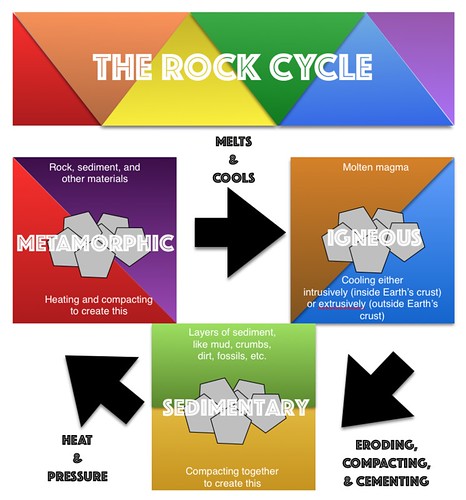
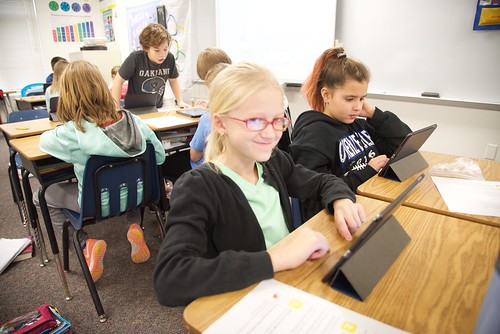
The drawing tools available in Apple's creation apps are simple, yet powerful. Even a non-artistically inclined person can create digital graphics without even leaving the application they are in! Even more importantly, the act of creating infographics can lead to deeper understanding and longer-term learning for students.
Note: Whether demonstrating the drawing tools in Pages, Numbers, Keynote, or even iBooks Author, the process is the same. Use these ideas as starting points. What kinds of lessons do you teach that would lend themselves to students creating information-filled graphics?
First some teaching resources:
Creating Infographics is an excellent learning activity in content areas as well.
See a few student examples about the Rock Cycle from Kevin Morrow's 8th grade Science class here. Mr. Morrow commented on how visible the student creations made their understanding of the science content he had taught. In addition, he enjoyed the variety and creativity that the project allowed for.
Don't abandon printed projects... just enhance them with technology integration!
This was a driving force in a recent project I had the honor of working on with the West Holt 4th grade classes. Mrs. Shirley Rossman wanted to create a class book to demonstrate their collective knowledge of Nebraska history. And the 150th anniversary of Nebraska's statehood was the perfect backdrop.
Excitingly, she reached out to me looking for ways to infuse digital media into the printed, bound book that she envisioned as a class product. We collaborated to design an augmented reality experience for the reader, where each student's two-page spread could be brought to life with AR.
This was our process:
1. Text development
Students selected their Nebraska topics, researched them, and wrote their text narrative for their page. The pages of the book were mapped out on large classroom posters. To preserve the authentic student-authored look and feel, Mrs. Rossman had each student hand write their text onto one of the page templates to go to the Schoolmate Publishing Company that she had selected to produce the class book.
2. Create trigger images
Students created original artwork to accompany each page of text, again drawing by hand on the book template pages. I used the iPad to take a quick photo of each student's page of artwork so that I could designate each one as a trigger image for the augmented reality we planned to build in.
*Side Note: I applaud the originality and creativity of the students' hand-drawn images. While it would have been easy to find images online or even create them digitally, the authenticity of these students' illustrations makes the book extra special.
3. Create media assets
Each student had the opportunity to create at least one media asset to accentuate their topic. We talked about bringing their research "to life" and trying to enhance the content in a creative, not simply redundant way. This was truly where student choice and voice could shine. App which I demonstrated as suggestions to choose from included:
Chatterpix
Tellagami
Toontastic/Toontastic 3D
Puppet Pals 1&2
WordFoto
iMovie
DoInk Greenscreen
Nearly every app was new to the students but the definitely jumped in and learned quickly! Some student seven created multiple assets that could be selected when readers scanned their image. Mrs. Rossman did a wonderful job of coordinating additional parent volunteers, para professionals' help, and simply workspace on the days we reserved for media production.
We did post all the video assets on a YouTube playlist, just as a secondary way to showcase the students' work and creativity.
4. Blipp-building with Blippar
While Mrs. Rossman sent away the physical pages of the book to be printed and bound, I began working to develop the augmented reality interface.
I selected Blippar as our AR platform because of its reputation with education, in addition to its free price. Teachers can sign up for the Blipp-builder dashboard and create unlimited "blimps" for their classroom, completely for free. Blippar, the app which readers will use to 'scan' the pages, is free as well, and available from both the iTunes and Google Play Store.
While the blimps created with an educational account aren't "public" they can easily be viewed with a simply "campaign code." This is a 5 digit number that users enters into the settings of the app prior to scanning. We put these directions as the pregame page in our book:
The Blippar dashboard asks you to first name your campaign: West Holt 4th Grade NE History Book and then create a blipp for each student by uploading their trigger image.
To add to the interaction, you have several options. The student's media asset can be displayed on initial startup. Or you can add a "button" for the user to tap to initiate the media asset. Sometimes I used generic buttons from the Blippar library, but often I used a custom logo that I created for the project and uploaded to the Blippar library.
Various actions can be accommodated on each tap. Ones we primarily used included:
play video (either uploaded directly to Blippar or linked online)
view image gallery
go to URL
open PDF
Each blipp needs to be saved and published individually, but all can be accessed with the one campaign code in the app.
It seems there is a world of untapped potential to blips-building and I have a feeling that we only scratched the surface with this project!
Our process included brainstorming ideas and writing the stories on paper with Mrs. Willis. When Mrs. Morrow worked with us on the iPads we created the setting and characters for our stories and recorded the animations with the Toontastic 3D app. Then each student created their own Book Creator project and designed their pages by adding the typed text of their story, their Toontastic animation, additional illustrations, and of course, their signature. Each student’s individual Book Creator pages were Airdropped to Mrs. Morrow’s iPad to be combined into one class book. Students brainstormed the facts for the ‘Did You Know?’ pages in between each of the leprechaun’s adventures. Finally, we filmed the conclusion for the book all together and added it to the last page of our Book Creator project.
So, how can you experience this creative story?
Luckily, you have three options.
1. If you have an iPad or a Mac, download the free iBooks app.
2. If you do not have an iPad, but have another type of digital device, you can “read” the whole story as a video on YouTube.
The video of the whole book is over 18 minutes long, but you can easily skip around to find your favorite parts.
*TIP: Be sure to watch the ending of the story, no matter what! It starts around 17:44
3. A final option would be to stop in the 1st Grade classroom and read the book there. We will have a printed version on paper (minus the student voices and videos) as well as being able to view on the school iPads.
Happy St. Patrick’s Day from some amazingly creative iPad authors!
There were so many new resources for coding with kids available during the #HourofCode week for 2016 that I just had to share them with you through this blog post! Remember, that coding shouldn't JUST happen during Computer Science Education Week, but rather all year long! Actually, if you visit code.org NOW (following the completion of Hour of Code Week) it is even better, as your progress will be saved in the system. (It wasn't possible during the week of Dec. 5-9 due to the extremely heavy traffic to the site.) So, here are some of the new and applicable activities for schools for coding for this year's Hour of Code week and beyond:
Swift Playgrounds app
Apple recently released a free iPad app from which anyone can learn the Swift programming language. The Swift Playgrounds app will only run on a newer iPad updated to at least iOS 10, but if you are able to access it, you should definitely give it a try! The logic skills and fundamental coding lessons are excellent for any age (although geared more towards grades 5-8, in my opinion). Within the app you will find various challenges in addition to 'Learn to Code 1 and 2' including a special "Hour of Code" challenge, designed to be completed in about an hour. Also, don't forget about the free teacher's guides available, making exposure to coding easy for an educator to implement regardless of personal experience.
Code.org
If you don't have a new enough iPad to run the Swift Playgrounds app, there are plenty of alternative options. Choose an 'Hour of Code' activity to get started and then go beyond an hour by joining a self-paced course.
Some of the Hour of Code activities that students really enjoyed from the Code.org website this year included the following:
Also, check out Mickie's coding LiveBinder: http://www.livebinders.com/play/play?id=1463396 ESU 8 schools who participated in Hour of Code activities were numerous! I was personally able to visit several classrooms and lead a few activities myself. It was wonderful to see firsthand students' excitement and ability to master the art of block coding in a very short time. The rich dialogue, college and career-ready skills, and deep life lessons that come from these student experiences validate the small amount of time they take in our schools. If we have the opportunity to hook one kid onto something that he or she can continue to pursue independently, we have opened a tremendous doorway for their future!
2016 Hour of Code photos from ESU 8 ... click to advance images
*Each Google account/Gmail address automatically has 1 YouTube channel associated with it. You simply need to activate it to use!
What You Need:
Google account with Google+ enabled
YouTube.com OR YouTube app
Steps to Complete:
Sign in to your Google account.
Visit YouTube.com
Click on ‘My Channel’ from the main menu.
Accept the terms of service to create channel.
Add Channel art and Channel description (optional).
Choose your Channel Settings including privacy settings and customizing the layout of your channel (add a channel trailer and organize playlists into sections)
Create new playlists around topics of interest by either uploading videos or clicking “Add to” button when viewing videos from others.
Share your playlists and/or your entire channel.
Channel Settings
Description (sentence or two describing your channel content, purpose, and intended audience)
Channel art (suggestion: Create graphic with dimensions of 2560 x 1440 pixels or use Canva.com to create YouTube channel art.)
Privacy (can be set at the individual video and/or playlist level as well)
Customize the layout of your channel
Channel trailer (welcome video that will only play when people visit your channel for the first time)
Suggest content to subscribers
Organize playlists into sections (lots of options for organization here)
Advanced settings
Playlists
Can create as many playlists as you want...
But only 10 playlists can be displayed as sections on your channel homepage
Create playlists by class, chapter, or topic
Add videos to playlists directly upon uploading or when viewing from YouTube
Add tags for additional keyword searchability
Uploading videos to your channel
Upload button from YouTube in a browser
Choose Privacy: Public, Unlisted, Private
OR use YouTube capture app (signed in to your account) from a mobile device
While uploading, you can add description, details, etc.
Click ‘Publish’ for it to be searchable/subscribers to get notification
Power in SUBSCRIBING
Require students and encourage others to Subscribe to your channel by clicking once on the button on your Channel homepage.
If you get over 100 subscribers, you can create a custom URL for your channel.
Additional Information
In order to upload videos longer than 15 minutes you must verify your YouTube account (YouTube will send a verification code as a text message or voice mail so that you can verify you are a human YouTuber!)
Mrs. Rossman's 4th grade students at West Holt Public School have become experts on honey bees! They wanted to share what they learned with others and thought that creating a hologram might be a memorable experience for all.
First the students researched and learned all the amazing facts about the honey bee. They compiled their research into topics and each constructed a short "script" to explain key findings.
I (Mrs. Morrow) visited the group and showed them how to build hologram "projectors" to use to view hologram videos (from YouTube) on their iPads. Each student built their own and many questions were asked that added to our collective curiosity, such as "What is the biggest hologram we could create?"
On my next visit, I worked with the kids to begin to create their video. We decided that the best approach would be a live action video (rather than an app-animated video) and knew we needed to film in front of a green screen in order to make our video appear on a solid black background (for the hologram).
Mrs. Rossman and the students collected great props and costumes and the students brought their scripts to life in front of the green screen!
I initially planned to use the DoInk Green Screen app to assemble the clips, but it was actually easier to do the additional editing (and the green screening) all in iMovie on the Mac. This made adding the voice over even easier as well.
On my last visit with the group, the kids each recorded their scripts narrating the scenes as voice-overs right in iMovie. In doing so, they could view the source clip in real time and time out their reading somewhat.
We exported from iMovie and had one full size video, which can be viewed on YouTube here:
The final step was to AirDrop this video to each of the students' iPads. We started a new Keynote file, widescreen format with black background. We inserted the video once and re-sized it to smaller dimensions. Then we copied and pasted, and rotated the video three more times. (90 degrees, 180 degrees, and 270 degrees) Using Keynote's guides we aligned the four videos so that all the "feet" were touching the inside borders, and attempted to make that interior "window" in the shape of a square. An animation needed to be added to all four videos so that they all played automatically in unison (and not in succession of each other).
Note from Katie: The widescreen format of our video proved challenging to forming that inner square. It was a bit easier to see if we changed the background color of the Keynote slide to something other than black, and then changed it back at the end. I overlapped the videos a bit trying to get the hologram image as large as possible, but still somewhat centered in the projector pyramid. Also, I muted the sound (turned volume to 0) on three of the video clips to avoid the echo-ish sound that is typical of these video projects.
So, now our hologram video was complete and we published it on YouTube as well. Now any iPad with any hologram projector anywhere can enjoy the amazing bee knowledge of these fabulous 4th graders!