Sunday, October 6, 2019

Animal Adaptations Infographics

For this year's ESU 8 Elementary Science Olympiad, activities were centered around a phenomenon. Students were scientists as they explored and experienced topics with connections to that phenomenon.

During my rotation we learned about animal adaptations and how they help animals survive. Each pair of students created an infographic in Keynote on iPad to visually share their scientific knowledge with others.

To replicate in your classroom, I recommend starting with the Everyone Can Create: Drawing guide book from Apple Books. Chapter 9 is all about infographics and contains solid examples as well as planning considerations.
Everyone Can Create Drawing
We also examined this Snowy Owl infographic example to look for critical features of an infographic as referenced in the Everyone Can Create chapter.

Next student pairs each chose an animal that interested them and researched it on World Book Online Student Edition. ESU 8 provides access to this valuable resource to all our schools and it tremendously helped with efficient and responsible research for this age group of students. Older learners could use Advanced and younger grades the Kids Edition of World Book Online. We discussed how to cite and credit the article for their researched and then navigated to the media tab to choose the image to be the center piece of their infographic. Students copied their animal's image and then opened the Keynote app to begin to create.

Prior to students arriving, I used Apple Classroom to distribute a Keynote file where I had created a custom theme with different biome backgrounds set to 50% opacity and locked in the background of the slide design options. This was mostly to maximize time for students to create.

(To make your own version simply create a new Keynote, View > Edit Master Slides, delete the existing masters other than the blank one, duplicate that and add a different background image to each, name each slide master and choose 'Done'.)

Now, all students needed to do was add a new slide (blue + on bottom left) and choose the biome that most closely matched their chosen animal. They pasted their image on the slide, resized and some used instant alpha to clean up the background. (Note: If students had access to Apple Pencil, I would encourage them to trace, color, and delete the original image in order to have a truly personalized look for the visual focus of their infographic.)


Using my example of a deer and its adaptations that I created below, we continued to go back and forth (or use Split Screen view on the iPad) between World Book Web and Keynote in order to add the following components:

  • Title
  • Name of biome
  • Map of where it lives
  • at least 3 adaptations that help it survive


Keynote skills the students learned included:
  • Adding and editing text
  • Inserting drawings
  • Using shapes, callouts, and connectors
  • Recording audio (for a few early finishers)
Also during this fast-paced 45 minute lesson we discussed critical design elements including, font, color, layout (proximity & space), and contrast. 


After all the student groups had rotated through, it was easy to collect the Keynote files through Apple Classroom and send the completed infographics back to their teachers. You can view the students' creativity and scientific knowledge in this online gallery.

Wednesday, August 14, 2019

The Wormhole Challenge

Inspired by creative educators sharing their #WormholeChallenge creations on Twitter, ESU 8 educators got out a little green play doh and tried their own hand at magically revealing something via iMovie green screen capabilities.


While the green/blue screen feature is fairly new to iMovie on iPad, it has been a part of iMovie on Mac for some time. However, it is the approach to this simple green screen project that seems new.  Often we film in front of a stationary green background for effect. But in the Wormhole Challenge, you manipulate the green screen to reveal a pieces of a background a little at a time.

There are so many adaptations for this simple idea, but we used it as a simple ice breaker activity while working with groups of teachers in back-to-school PD. Here are the steps we used to accomplish the goal:

1) Use the built-in camera to record a video of your partner manipulating the green or blue play doh. Change sizes, placement, and even position further and closer to the iPad camera.

2) Open a new blank iMovie video project.

3) FIRST, add your background image (or video). In other words, what you plan to reveal.

4) SECOND, add your video of the hands manipulating the green blob.

  • if using iPad: 
With your playhead at the beginning of your project, use the + to add the Video from your 'Recently Added' album. Once selected, use the ellipsis to select "Green/Blue Screen" from the options. Finally, don't forget to tap on the part of the video in the viewer that you want iMovie to "key" out (green, blue, or some other color you want to become invisible!).


  • if using Mac:
Drag your green screen video clip just ABOVE your background clip in your timeline. Then, click the Video Overlay settings button and change the dropdown menu from 'Cutaway' to 'Green/Blue Screen'. That's it! iMovie will automatically find the green or blue color here. (You can, however, do some adjusting and editing if need be.)


Amazingly, that is all there is to it! No need for additional software, apps, or extensive editing experience. Now, what will you magically reveal in your next Wormhole Challenge project?


Wednesday, May 8, 2019

Pioneer ABCs: Book creation by 1st graders


To bring to life first grade Social Studies learning, this class created an alphabet book based on the "Little House on the Prairie" series and Westward expansion topics. 

First, Mrs. Willis and her students brainstormed topic options for each of the letters of the alphabet, then assigned to her class. 

Next students researched and wrote their "stories," drawing an accompanying picture on paper.

I shared an ABC book template page via Apple Classroom and worked with the students to publish their work in Pages. Many examples of combining pencil and paper artwork with digital artwork were experimented with. 


Students rotated through some "finishing stations" where they recorded audio with Mrs. Willis or were photographed in a pioneer costume.
 

Finally the pages were submitted to me via Apple Classroom so that I could assemble them in a class alphabet book. 


Now published on the Apple Books Store, you can enjoy it here:

For members of our audience without access to Apple Books, we shared the following additional versions:

Wednesday, March 27, 2019

Six Shot Stories in Science

West Holt 4th graders are at it again! Turning their writing skills into six-shot stories with Clips. This year they took on the added charge of creating their stories about relevant science topics from a list Mrs. Shirley Rossman gave them.

They used a storyboard/planning document to help them plan their video stories, making sure they used six unique camera shots when filming.


Finally, they brought their Six Word Stories to life using Clips on the iPad.


Here are the final products:
Six Shot Science Stories playlist


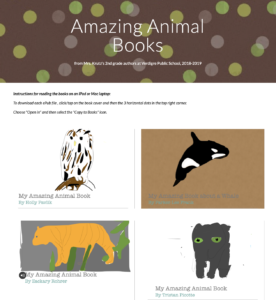
AMAZING Animals books written by AMAZING Authors

For this 2nd grade class, this was the very first time they had ever used Pages... let alone create a digital book. 

They were excited about becoming authors! (mostly!)

I shared a simple template with them via Apple Classroom so that had a starting point for their Amazing Animal book. 
Download and open in Pages
Our first task was to find a cover image, change the opacity, and use the drawing tools in Pages to create original artwork. When the tracing image was deleted, students were so proud of their digital artwork! 


Of course, capturing "selfies" for their "Author the Author" page was pretty fun, too!
 

Next the students added content from their research on each of the pages, enhancing with copyright-friendly photos, shapes & drawing and even image galleries.  
   

The final step was to record audio. Some students recorded a reading of their entire "report" while others recorded bits of text from multiple pages. 


Students exported as ePubs and "handed in" their books via Apple Classroom, and Mrs. Krutz collected them all. To share with family and friends, I posted the epub files on a webpage and also made a screen recording video of each book, so that an audience without an iPad could still hear the students' voices. 

All in one day's work in a second grade classroom!
Amazing Animal Books by Verdigre 2nd grade