Showing posts with label lessons. Show all posts

Tuesday, October 29, 2019

Topics and Trends in Tech Integration (ESU 8 Newsletter article)

Topics and Trends in Tech Integration
By Katie Morrow, ESU 8


The following are current technology integration projects and practices that ESU 8 schools have been busy with recently. Remember that the invitation is always open if you see something from this list that you would like to try in your classroom. Contact us at ESU 8 and we would love to help get something planned in your school!
  • Digital book creation: A digital book is so much more than a book. Rather it is a container/organizer for all kinds of learning! Use a digital book as an investigation journal, a portfolio, a class collection of pages on a larger topic, or even a way to document a school event. Publish and share with the world without wasting any printer ink!
  • Creative media production: Whether a quick project like the greenscreen “Wormhole Challenge” or a class project like content area student-produced videos, students can practice interview skills, speaking skills, editing and creativity. Videos are a universal way to share what is being learned in the classroom with the rest of the world!
  • VR and AR: Virtual and augmented reality can bring content to life. Students can experience apps to take them places they couldn’t normally go: for example the inside of body systems or underneath the ocean floor. Also possible is students creating their own VR and AR creations with tools such as Google's Tour Creator, AR Makr app, or Blippar.
  • Digital resources for research: Utilize World Book online, Learn 360, or Virtual Field Trips to connect your class with first rate global resources- all with virtually no cost. Avoid simply going on a Google search and use higher quality resources for whatever your next educational project may be.
  • Blended Learning and PBL: Here’s a framework or a learning methodology to make your next project more student directed. Student agency empowers learners to be responsible for choices impacting their productivity and understanding of content. Make your next unit more personalized by blending in some project based learning or station rotation experiences.  
  • Gamify with assessment tools: Use technology for your next classroom review session and make learning fun! There are so many readily available formative assessment tools that you can choose a new one each unit so students don’t grow tired of any of them. Even some traditional tools have new features, so ask about ways to gamify that next class review session. 
  • Learning Management System tools like Canvas or Google Classroom: The easiest way to take technology integration to the next level in your classroom is to employ a system of content delivery and student interaction. Even Apple Classroom has updates to make their newest technology more manageable for all. Work with us to uncover ways your LMS can allow for more productive learning environments. 
  • Coding: Expose students to computational thinking by integrating some analog "intro to coding” activities. Or give them time to explore Swift Playgrounds on iPad or the code.org website. Or bring the Sphero programmable robots to your school for a coding kick-off activity. Once you get kids hooked, the sky is the limit for their future!

For additional ideas and examples from ESU 8 schools recently, be sure to check out my Instructional Tech at ESU 8 blog at: https://esu8tech.blogspot.com  

Sunday, October 6, 2019

Animal Adaptations Infographics

For this year's ESU 8 Elementary Science Olympiad, activities were centered around a phenomenon. Students were scientists as they explored and experienced topics with connections to that phenomenon.

During my rotation we learned about animal adaptations and how they help animals survive. Each pair of students created an infographic in Keynote on iPad to visually share their scientific knowledge with others.

To replicate in your classroom, I recommend starting with the Everyone Can Create: Drawing guide book from Apple Books. Chapter 9 is all about infographics and contains solid examples as well as planning considerations.
Everyone Can Create Drawing
We also examined this Snowy Owl infographic example to look for critical features of an infographic as referenced in the Everyone Can Create chapter.

Next student pairs each chose an animal that interested them and researched it on World Book Online Student Edition. ESU 8 provides access to this valuable resource to all our schools and it tremendously helped with efficient and responsible research for this age group of students. Older learners could use Advanced and younger grades the Kids Edition of World Book Online. We discussed how to cite and credit the article for their researched and then navigated to the media tab to choose the image to be the center piece of their infographic. Students copied their animal's image and then opened the Keynote app to begin to create.

Prior to students arriving, I used Apple Classroom to distribute a Keynote file where I had created a custom theme with different biome backgrounds set to 50% opacity and locked in the background of the slide design options. This was mostly to maximize time for students to create.

(To make your own version simply create a new Keynote, View > Edit Master Slides, delete the existing masters other than the blank one, duplicate that and add a different background image to each, name each slide master and choose 'Done'.)

Now, all students needed to do was add a new slide (blue + on bottom left) and choose the biome that most closely matched their chosen animal. They pasted their image on the slide, resized and some used instant alpha to clean up the background. (Note: If students had access to Apple Pencil, I would encourage them to trace, color, and delete the original image in order to have a truly personalized look for the visual focus of their infographic.)


Using my example of a deer and its adaptations that I created below, we continued to go back and forth (or use Split Screen view on the iPad) between World Book Web and Keynote in order to add the following components:

  • Title
  • Name of biome
  • Map of where it lives
  • at least 3 adaptations that help it survive


Keynote skills the students learned included:
  • Adding and editing text
  • Inserting drawings
  • Using shapes, callouts, and connectors
  • Recording audio (for a few early finishers)
Also during this fast-paced 45 minute lesson we discussed critical design elements including, font, color, layout (proximity & space), and contrast. 


After all the student groups had rotated through, it was easy to collect the Keynote files through Apple Classroom and send the completed infographics back to their teachers. You can view the students' creativity and scientific knowledge in this online gallery.

Thursday, January 17, 2019

Third Grade Authors publish book about their community's history

The ABCs of Our Community, O'Neill on Apple Books Store
O'Neill Elementary's 3rd Grade Reading class, under the direction of Mrs. Julie Pistulka along with help from Katie Morrow, ESU 8, recently published their latest version of an annual community history research project. This year, the creative student authors compiled and shared their information in the form of an alphabet book.

Using a Pages template, each "letter" consists of 3 pages:
1) a stanza of poetry and photo gallery on the topic
2) written report from student research
3) student-created artwork

Students added audio narration for all the text with the newest feature of Pages books - Audio Recordings.

Learn more about the community of O'Neill, Nebraska as well as student creation of digital books with Pages on iPad by downloading the book from the Apple Books Store.


Wednesday, November 21, 2018

Live Loops Lexicon: A vocabulary lesson with GarageBand


For 5th and 6th graders this was their first exposure to GarageBand. As we didn't have enough time for them to work through the Everyone Can Create Music book in its entirety, I gave a brief overview of how Live Loops worked and let them experience the power of music creation via discovery mode. 

Then they randomly selected words from a "power words" vocabulary list I pre-made. Their task was to create a "Live Loops Lexicon" where the feel of the music helped bring to life the meaning of the word. After their 30-60 seconds of music was created and captured, they added a microphone track and voice recorded their word, its definition, and usage in an original sentence. 

Alternately named "Lingo Jingles" this was a simple activity that introduced students to the power of creating music with GarageBand, while at the same time broadening their vocabulary!


Student Examples:


Monday, September 3, 2018

Students Authoring Books with Pages


Every year on September 8, International Literacy Day is celebrated. In conjunction with this year's celebration, AppleEDU has launched a #PagesBookChallenge. The challenge is simple. Create a digital book with your students in Apple's Pages app (free creation app for Mac or iPad). Then, simply tweet a short synopsis of the book along with its cover and tag #PagesBookChallenge.


To encourage all educators to participate here a series of short tips and recommendations for creating digital books with Pages.

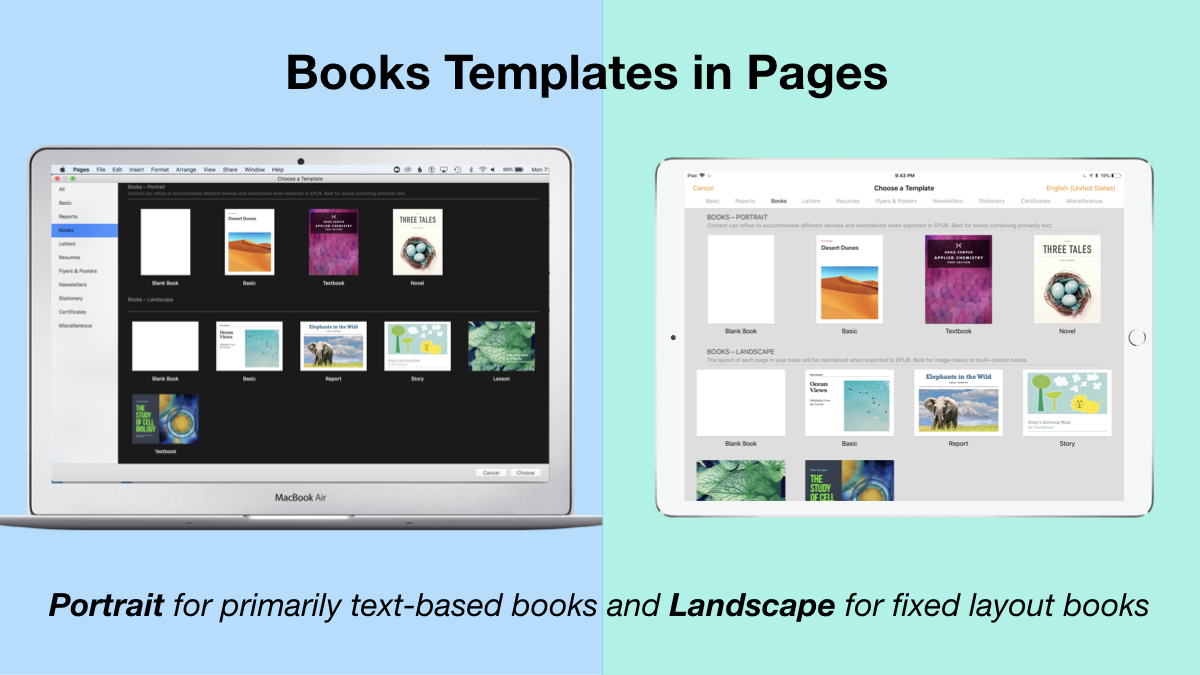
1. Begin a new Pages project using the Books templates.

Tip: Use Portrait templates for primarily text-based books (so that the reader can resize the text and the pages will adjust accordingly) and Landscape for fixed layout books (where you control the exact design and layout of the pages and the reader cannot adjust).

2. Author and Edit as you normally would in the Pages app. 

The beauty of the iWork suite, in my opinion, is its simplicity and consistency across apps. Unleash your creativity!

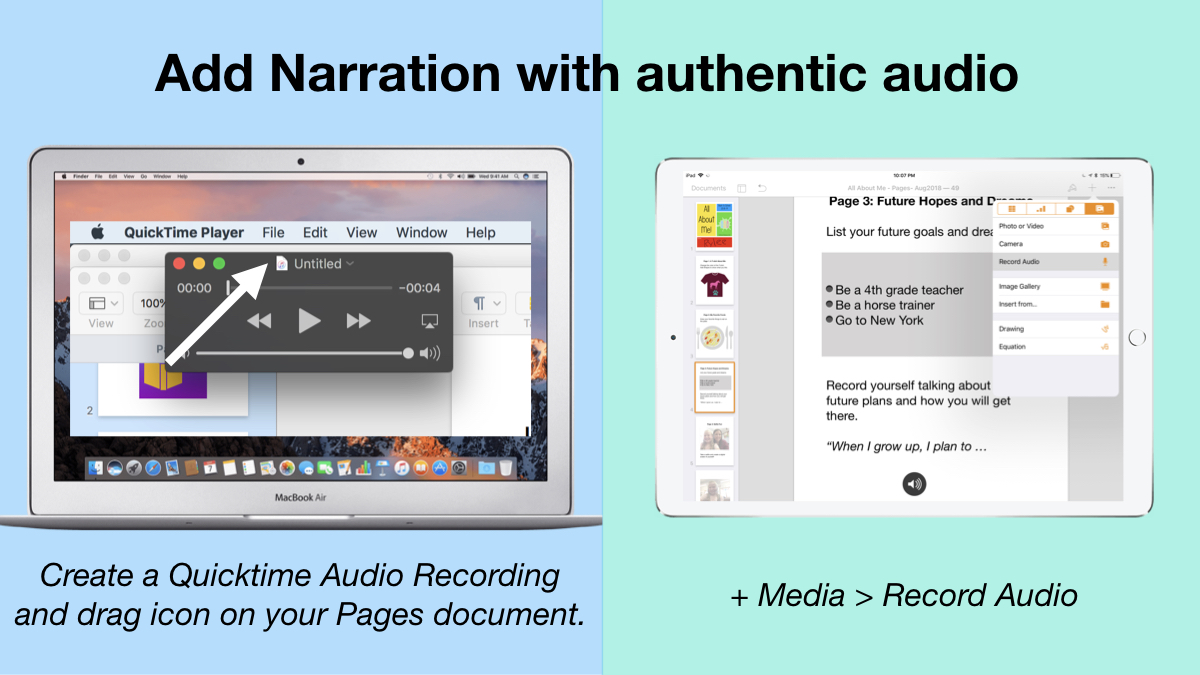
3. Add narration with authentic audio

On Mac: Create a Quicktime Audio Recording and drag icon next to filename onto your Pages document.
On iPad: Tap the +, choose the Media tab, and Record Audio, then add to page.

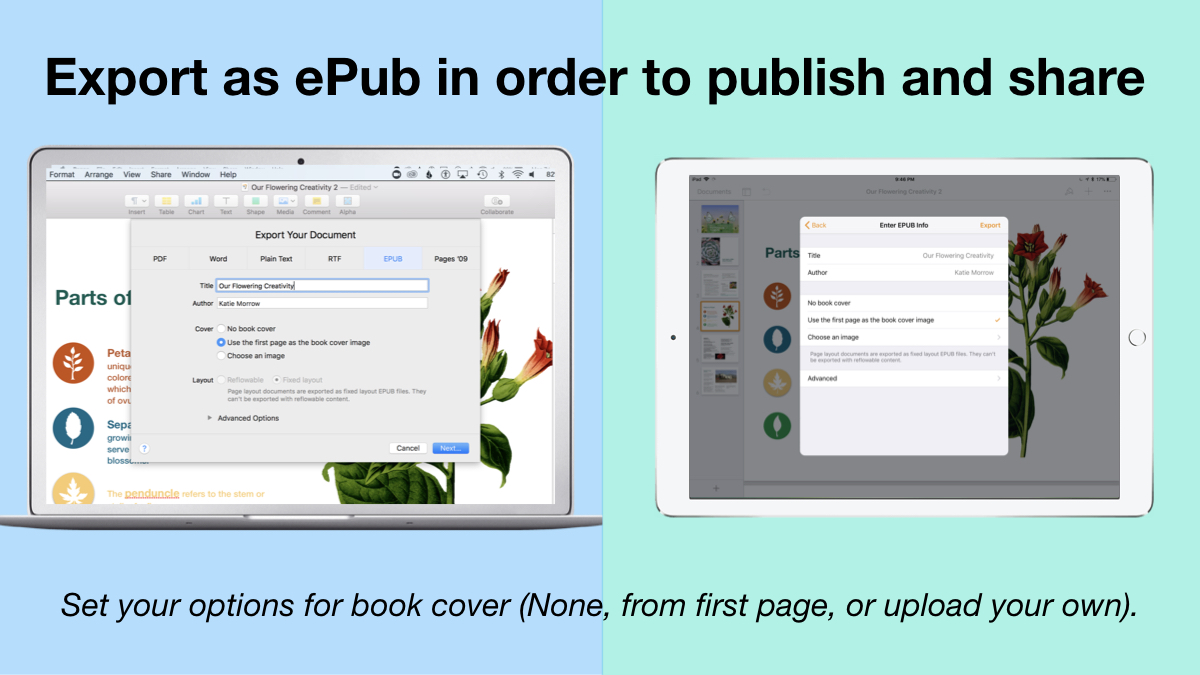
4. Export as ePub for Publishing and Sharing.

Title your book and name the author. Set your options for book cover: (None, from first page, or upload your own).
There you have it! Anyone can create a book with Pages. 


 Student books authored in Pages by Mrs. Troester's English 8 class, Spring 2018. (Science "Explainer" books for younger learners)

As educators the possibilities are endless when authoring books with Pages. To help learners experience authentic authoring, encourage them to work through all stages of the writing process. Here is a 60 second reminder of how to do so within the Apple ecosystem.


Finally, teachers can use Pages templates to help students focus more on the content of their books, and less on the the design of the pages. Whether for professional learning experiences, class books where every student authors a piece, or even shorter individual writing projects, simply create a Pages book as a starting template. Share the Pages document as a starting point and allow the learners to customize the content. Be sure to take advantage of the following features:

Media placeholders

Add image gallery placeholders from the Media button. This is a preset placeholder for the author to add an entire gallery of images.

Add text boxes and utilize Paragraph Styles

Text boxes are automatically ready as placeholders. Simply change the paragraph style and/or formatting.

Build your own photo/video placeholder

Add an image (or screenshot). Select the image and choose:
On Mac: Format > Advanced > Define as Media Placeholder

Add pages as desired and distribute to all your budding authors.  

I cannot WAIT to see what creative ideas you and your students have when creating books in Pages!


Friday, August 31, 2018

4 Types of Sentences... Zoom Clues in Clips!

Shirley Rossman, 4th grade teacher at West Holt Elementary, just finished teaching her students about the four types of sentences. In order to reinforce these key concepts, she had the idea to adapt the concept of "Zoom Clues" videos made in Apple's Clips app and challenge her students to demonstrate mastery.

Here is the project workflow:

  1. Students choose a "mystery object" and author FOUR sentences (one of each of the four sentence types: declarative, imperative, interrogative, and exclamatory) giving clues about the object's identity. 
  2. Students take a photo of their chosen mystery object with the iPad camera. The image should be fairly close up, but show the entire object, as this will be the view shared as the "answer" to the Zoom Clues video. 
  3. Students start a new project in Clips and add a poster image to introduce their video.
  4. From the Library, bring the photo of the mystery object into the "stage." Pinch to zoom in as far  as possible, and position the image in a way that guessing the object could be challenging. Add a label with the first clue and press the big red record button to add to the Clips project. 
  5. Zoom out just a little and/or change the viewpoint, add the second sentence clue with a new label, and record the clip. 
  6. Repeat for the last two sentence clues. 
  7. Add a conclusion slide that shows and reveals the answer.
  8. Add music and export the final video to share it!

Here is a sample "4 Types of Sentences Zoom Clues" that the West Holt 4th graders and I quickly made together, but hopefully soon they will share some more clever examples of student creativity! Check back soon!


Thursday, May 25, 2017

Creating Infographics: Drawing Tools with Pages and Keynote

The drawing tools available in Apple's creation apps are simple, yet powerful. Even a non-artistically inclined person can create digital graphics without even leaving the application they are in! Even more importantly, the act of creating infographics can lead to deeper understanding and longer-term learning for students.
Note: Whether demonstrating the drawing tools in Pages, Numbers, Keynote, or even iBooks Author, the process is the same. Use these ideas as starting points. What kinds of lessons do you teach that would lend themselves to students creating information-filled graphics?

First some teaching resources:


Creating Infographics is an excellent learning activity in content areas as well.   


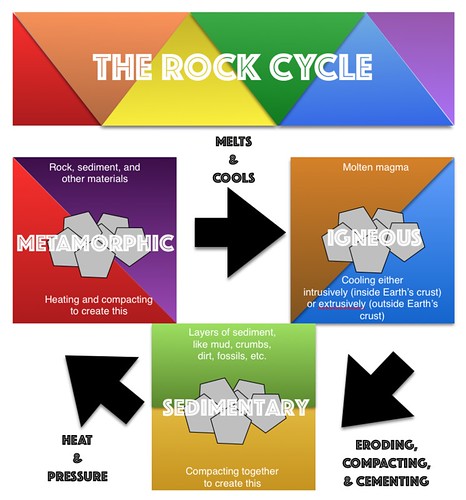
See a few student examples about the Rock Cycle from Kevin Morrow's 8th grade Science class here. Mr. Morrow commented on how visible the student creations made their understanding of the science content he had taught. In addition, he enjoyed the variety and creativity that the project allowed for. 
Rock Cycle Infographics with Pages
Click to advance slideshow through multiple student examples. Or visit the collection at https://www.flickr.com/photos/kmorrow/sets/72157682304347790 

Additional links and resources:


Tuesday, October 11, 2016

Everyone Can Code!

Everyone Can Code!
an ESU 8 Wednesday Webinar from Katie Morrow


Everyone Can Code is an initiative recently launched by Apple to make coding with the Swift programming language even more accessible to all. Learn about Swift Playgrounds, a free app designed for middle schoolers on up, accompanying Teacher’s Guide, and related resources to give even novices more opportunities to reach students interested in coding. 

View the webinar here

and check out the Links and Resources below:

Everyone Can Code (and Swift Playgrounds)
Wednesday Webinar 10-5-16


Swift Playgrounds app
*Requires iOS 10.0 or later
Designed for Middle School Students

Swift Playgrounds Teacher Guide

App Development with Swift
Designed for High School or College Students

App Development with Swift Teacher Guide

Additional Resources

Coding STEM kits available for check out through the ESU 8 Media Center

Tickle app (free, but requires newer iPad)

Ozobot for pre-coders

Coding for Kids blog post by Katie Morrow from last year

29989380921_e5c99b1221_z.jpg

Wednesday, March 16, 2016

Writing Poetry with iPad

The following are some simple ideas for teaching poetry writing lessons with iPad apps.  All apps are free, unless otherwise noted.

Rhyming Poetry

Try the Rhymer's Block app to create a new piece of rhyming poetry. Use the Prime Rhyme app or the RhymeZone website as a reference to find rhyming possibilities. 

Acrostic Poems

Use the Acrostic Poems app or the online interactive from ReadWriteThink to create this simple introductory form of poetry.

Name Poems

Another great introduction to poetic forms is creating a name poem. Here is one online generator to quickly prompt this kind of poetry. Also consider trying this Name Poem app.

Found Poems

"Found Poems" are formed by finding words within prose and reassembling them in order to form a new poem. Students can use an app such as FridgePoems to practice reassembling random or suggested words. Then take a piece of prose (a famous speech or passage from an essay, for example) and create a found poem with the Word Mover app.


Point-of-View, Personification, or Persona Poems

Chatterpix app- Students write a poem in first-person point of view. They then take a photo of the “narrator” (it could be an inanimate object or a historical person or a photo of anything they find online).  In the Chatterpix app they draw on where the “mouth” is and then record themselves reading their poem, making the photo come to life and look like it is speaking.  Alternatively, they could use an app such as PhotoSpeak if their poem lasts longer than 30 seconds.

Oral Fluency Poetry Reading

GarageBand app- Students record an oral version of any poem they author, reading with expression of course!  Export the audio recordings with Share > Export Song to Disk and then collect all students’ poems in a playlist, Google Drive folder, or put on a website for others to listen to.


Illustrating Poetry

Use a drawing app like Doodlebuddy or Paper by 53 and have students create a Sketchnote of their poem.  Alternately, even simply illustrating an image to go along with their poem would have value.

Syllable Structure Poems

Use this teacher-created guide for iBooks to expose students to some poetry formats with set syllable structures (including haiku, senryu, tanka, and cinquain) and then use an app like Haiku Poem to create their own.


Concrete Poetry

Students create a concrete poem built out of the shape of their words.  A favorite app for this type of poetry creation is TypeDrawing, however it is a paid app.  Another option (also not free) is the app Path On.


Diamante Poems

Use the Diamante Poem app from ReadWriteThink to create this diamond-shaped, set structure poem.


Poetic Symbols

Use the Adobe Voice app and bring poetry to life with the images in the app's symbol library.  Add your poem with a voice over and you easily have a finished multimedia project.  Note: the student example below is not necessarily a poem, but gives you an idea of how simple to use the app is.


Poetry Video Remix

Create an iMovie from a published poetic work. The following example created by students is a interpretive remix of the poem "Nothing Gold Can Stay."


Figurative Language

Find examples of figurative language in modern day song (like the example below, created by students with the Keynote app), in books, or other existing works.  Students can create a compilation of figurative language examples or simply author their own.


Additional iPad apps for exploring poetry with students:

What additional ideas for teaching poetry writing with iPad do you have? Please share in the comments below!

Sunday, February 14, 2016

Creating eBooks in 2nd/3rd Grade Science: Weather Instruments

2nd and 3rd graders in Ms. Mather's Science class at Lynch Public School have been becoming weather experts. They decided to show what they have learned about scientific instruments by creating eBooks with one of my favorite apps: Book Creator. Here is a simple overview of their successful iPad learning adventure as well as easy extension ideas for additional application.

Photographing the weather while staying warm!


Building Background Knowledge


  • Ms. Mather and her class learned about Weather.  Some great digital resources include "Weather" from World Book Kids and several videos from Learn 360 - both available through your ESU 8 Media Center access. 
  • Ms. Mather decided that "weather instruments" would be a good focus and structure for the students' digital project.
  • Each student created a paper book detailed 8 scientific instruments used to study weather. Each page included the instrument name, picture, and student-created sentence.

Book Creator Basics

  • I shared an example of a student-authored Book Creator book, "A Dream Come True" (by Drew and Claire Morrow)
  • Then I showed them how to get started with a new Book Creator project and we discussed opportunities for creative content to go into their pages. 

Weather Examples in iBooks

  • Next we looked at a couple of published examples by students in the iBooks Store including:

Creation Process

  • Students quickly and easily navigated to the Book Creator app on their iPads and got started. Even with the free version of the app, students can completely author and publish one entire book.  Plans to upgrade to the $4.99 paid version were quickly made and easily jus
  • tified for future projects. 
  • Each page followed a pattern, and every page had a plan (in the students' paper books) and so students could concentrate on the creative side of publishing, maximizing their technology time.
  • For each page's images, students could choose whether to draw the weather instrument, take a photo using their iPad's camera, or find a photograph of the instrument online.  Students were encouraged to use photosforclass.com for copyright-friendly images for their books. 
  • iPads allowed for differentiation.  Some students were encouraged to add in a page about each weather instrument with either a photo or video of the student using it. 
  • All students were encouraged to record all of their book's sentences as audio recordings on each page.  We discussed how valuable this would be for someone who is blind, who doesn't yet know how to read, or even for guests at an upcoming technology fair.
Students excited to discover scientific instruments emojis!

Decisions for Delivery

  • Format (individual or group-authored)
  • Topics (jigsaw ideas, common outline, uniform topics)
  • Required Components (text + audio recordings of all text, photos or drawings, video)
  • Title (and covers)

Extension Options

  • Along with the students' study of weather instruments, this project would work well with creating a class weather forecast (using iMovie or DoInk and a green screen).
  • A global learning opportunity would be to ask each student to survey and collect data/images of the weather around the world.  After analyzing or mapping the results students could explain what they learned in their digital books.
  • Obviously, any topic could easily be interchanged with "weather" and used for an equally successful project.
  • Transfer of analog to digital
  • Don't underestimate the power of publishing to the iBooks Store.  Although these students plan to share within their school community and with the guests who come to their Technology Fair, they could also elevate their work to a global audience by leveraging the iBooks Store platform.
The weather kindly cooperated by gently snowing making for some great images for the students' books

What is the weather like in your part of the world? Using Google Earth