Showing posts with label science. Show all posts

Tuesday, October 29, 2019

Spooky Science


Mrs. Shirley Rossman and several of her 4th grade students created a Halloween-themed story to share their learning about physical and chemical changes in Science.

The team brought their ideas to life with a green screen, iMovie, and extra touches with Keynote.


The video was shared at West Holt Elementary's October assembly during Jr. Husky Highlights so all could share in the learning!

Congrats, ladies, on a creative, "creepy" project!


Sunday, October 6, 2019

Animal Adaptations Infographics

For this year's ESU 8 Elementary Science Olympiad, activities were centered around a phenomenon. Students were scientists as they explored and experienced topics with connections to that phenomenon.

During my rotation we learned about animal adaptations and how they help animals survive. Each pair of students created an infographic in Keynote on iPad to visually share their scientific knowledge with others.

To replicate in your classroom, I recommend starting with the Everyone Can Create: Drawing guide book from Apple Books. Chapter 9 is all about infographics and contains solid examples as well as planning considerations.
Everyone Can Create Drawing
We also examined this Snowy Owl infographic example to look for critical features of an infographic as referenced in the Everyone Can Create chapter.

Next student pairs each chose an animal that interested them and researched it on World Book Online Student Edition. ESU 8 provides access to this valuable resource to all our schools and it tremendously helped with efficient and responsible research for this age group of students. Older learners could use Advanced and younger grades the Kids Edition of World Book Online. We discussed how to cite and credit the article for their researched and then navigated to the media tab to choose the image to be the center piece of their infographic. Students copied their animal's image and then opened the Keynote app to begin to create.

Prior to students arriving, I used Apple Classroom to distribute a Keynote file where I had created a custom theme with different biome backgrounds set to 50% opacity and locked in the background of the slide design options. This was mostly to maximize time for students to create.

(To make your own version simply create a new Keynote, View > Edit Master Slides, delete the existing masters other than the blank one, duplicate that and add a different background image to each, name each slide master and choose 'Done'.)

Now, all students needed to do was add a new slide (blue + on bottom left) and choose the biome that most closely matched their chosen animal. They pasted their image on the slide, resized and some used instant alpha to clean up the background. (Note: If students had access to Apple Pencil, I would encourage them to trace, color, and delete the original image in order to have a truly personalized look for the visual focus of their infographic.)


Using my example of a deer and its adaptations that I created below, we continued to go back and forth (or use Split Screen view on the iPad) between World Book Web and Keynote in order to add the following components:

  • Title
  • Name of biome
  • Map of where it lives
  • at least 3 adaptations that help it survive


Keynote skills the students learned included:
  • Adding and editing text
  • Inserting drawings
  • Using shapes, callouts, and connectors
  • Recording audio (for a few early finishers)
Also during this fast-paced 45 minute lesson we discussed critical design elements including, font, color, layout (proximity & space), and contrast. 


After all the student groups had rotated through, it was easy to collect the Keynote files through Apple Classroom and send the completed infographics back to their teachers. You can view the students' creativity and scientific knowledge in this online gallery.

Wednesday, March 27, 2019

Six Shot Stories in Science

West Holt 4th graders are at it again! Turning their writing skills into six-shot stories with Clips. This year they took on the added charge of creating their stories about relevant science topics from a list Mrs. Shirley Rossman gave them.

They used a storyboard/planning document to help them plan their video stories, making sure they used six unique camera shots when filming.


Finally, they brought their Six Word Stories to life using Clips on the iPad.


Here are the final products:
Six Shot Science Stories playlist


Tuesday, October 31, 2017

Coding with Keynote

Prior to teaching coding to any age of learners, it is smart to teach better communication skills. At ESU 8's recent Elementary Science Olympiad one of the student activity stations did just that. 

First we began with coding with blocks. The engineer and the builder had the exact same blocks but their workspace was separated with a divider, blocking their view of each other's creations. Instead they gave verbal "code" as instructions to each other in the attempts of replicating the exact same structure. Modifying each round with various alternations (ability for builder to ask questions, written instructions only, etc.) added additional discussion on the importance of communication in the process of science, and coding in particular. 

Activity Guide for 'Let's Communicate'


Next we moved to the computer and worked instead with digital "blocks" which were actually shapes in Apple's Keynote application on our MacBook Air laptops. Both the engineer and the builder had to pay attention to the very fine details and convey that "code" back and forth in order to replicate each other's designs. 

  1. Use basic shapes to construct an image on a blank Keynote slide.
Note: The more “complicated” the shape, the more “code” will be involved.

  1. Complete a “code sheet” with each shape’s details from the Inspector.
Blank “Code Sheets” for students: http://bit.ly/codesheets

  1. Exchange code sheets with a partner.
No peeking at each other’s screens!

  1. Using the code alone, attempt to rebuild and replicate your partner’s image on a new blank slide. Enter details into the Inspector exactly for each shape added.

  1. View each other’s original slides and share feedback with your partner.
Debug your errors.

Optional Lessons:
  • Add a theme to the challenge, such as flag designs, pumpkin carving, or monster creation.
  • Address the importance of specific communication as discrepancies arise.


    Activity Guide for 'Coding with Keynote'


Sunday, August 20, 2017

Create an animation of the total solar eclipse with Keynote and Magic Move

First, you definitely need to show this TED-Ed 4 min video to explain it all

Then, view Apple EDU’s tweet with model eclipse animation

To recreate with Keynote, view this how-to example of step-by-step recreation from Koen Marien

Or here is a simpler, 30 sec animation that students more easily recreate with Keynote’s Magic Move

This was my first attempt at trying it, but now I know a little more I could add. Challenge your students to create something better than mine!

September update: Here is just one example of an O'Neill High School 8th grade student example created from this concept. Congratulations!


Thursday, May 25, 2017

Creating Infographics: Drawing Tools with Pages and Keynote

The drawing tools available in Apple's creation apps are simple, yet powerful. Even a non-artistically inclined person can create digital graphics without even leaving the application they are in! Even more importantly, the act of creating infographics can lead to deeper understanding and longer-term learning for students.
Note: Whether demonstrating the drawing tools in Pages, Numbers, Keynote, or even iBooks Author, the process is the same. Use these ideas as starting points. What kinds of lessons do you teach that would lend themselves to students creating information-filled graphics?

First some teaching resources:


Creating Infographics is an excellent learning activity in content areas as well.   


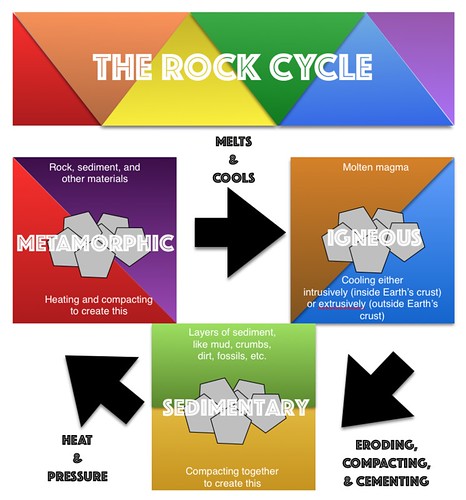
See a few student examples about the Rock Cycle from Kevin Morrow's 8th grade Science class here. Mr. Morrow commented on how visible the student creations made their understanding of the science content he had taught. In addition, he enjoyed the variety and creativity that the project allowed for. 
Rock Cycle Infographics with Pages
Click to advance slideshow through multiple student examples. Or visit the collection at https://www.flickr.com/photos/kmorrow/sets/72157682304347790 

Additional links and resources:


Sunday, February 14, 2016

Creating eBooks in 2nd/3rd Grade Science: Weather Instruments

2nd and 3rd graders in Ms. Mather's Science class at Lynch Public School have been becoming weather experts. They decided to show what they have learned about scientific instruments by creating eBooks with one of my favorite apps: Book Creator. Here is a simple overview of their successful iPad learning adventure as well as easy extension ideas for additional application.

Photographing the weather while staying warm!


Building Background Knowledge


  • Ms. Mather and her class learned about Weather.  Some great digital resources include "Weather" from World Book Kids and several videos from Learn 360 - both available through your ESU 8 Media Center access. 
  • Ms. Mather decided that "weather instruments" would be a good focus and structure for the students' digital project.
  • Each student created a paper book detailed 8 scientific instruments used to study weather. Each page included the instrument name, picture, and student-created sentence.

Book Creator Basics

  • I shared an example of a student-authored Book Creator book, "A Dream Come True" (by Drew and Claire Morrow)
  • Then I showed them how to get started with a new Book Creator project and we discussed opportunities for creative content to go into their pages. 

Weather Examples in iBooks

  • Next we looked at a couple of published examples by students in the iBooks Store including:

Creation Process

  • Students quickly and easily navigated to the Book Creator app on their iPads and got started. Even with the free version of the app, students can completely author and publish one entire book.  Plans to upgrade to the $4.99 paid version were quickly made and easily jus
  • tified for future projects. 
  • Each page followed a pattern, and every page had a plan (in the students' paper books) and so students could concentrate on the creative side of publishing, maximizing their technology time.
  • For each page's images, students could choose whether to draw the weather instrument, take a photo using their iPad's camera, or find a photograph of the instrument online.  Students were encouraged to use photosforclass.com for copyright-friendly images for their books. 
  • iPads allowed for differentiation.  Some students were encouraged to add in a page about each weather instrument with either a photo or video of the student using it. 
  • All students were encouraged to record all of their book's sentences as audio recordings on each page.  We discussed how valuable this would be for someone who is blind, who doesn't yet know how to read, or even for guests at an upcoming technology fair.
Students excited to discover scientific instruments emojis!

Decisions for Delivery

  • Format (individual or group-authored)
  • Topics (jigsaw ideas, common outline, uniform topics)
  • Required Components (text + audio recordings of all text, photos or drawings, video)
  • Title (and covers)

Extension Options

  • Along with the students' study of weather instruments, this project would work well with creating a class weather forecast (using iMovie or DoInk and a green screen).
  • A global learning opportunity would be to ask each student to survey and collect data/images of the weather around the world.  After analyzing or mapping the results students could explain what they learned in their digital books.
  • Obviously, any topic could easily be interchanged with "weather" and used for an equally successful project.
  • Transfer of analog to digital
  • Don't underestimate the power of publishing to the iBooks Store.  Although these students plan to share within their school community and with the guests who come to their Technology Fair, they could also elevate their work to a global audience by leveraging the iBooks Store platform.
The weather kindly cooperated by gently snowing making for some great images for the students' books

What is the weather like in your part of the world? Using Google Earth